
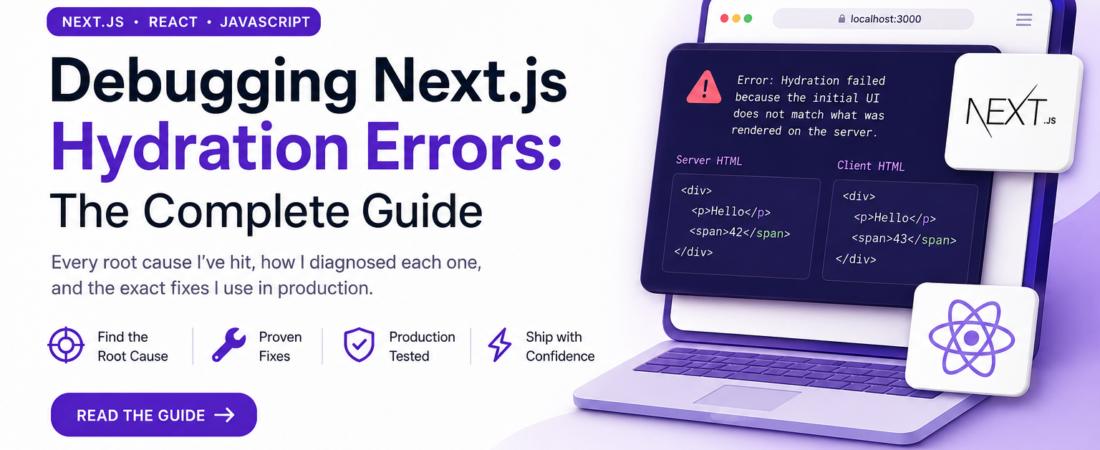
Meta description: I’ve spent hours tracking down hydration mismatches in Next.js. Here’s every root cause I’ve hit, how I diagnosed each one, and the exact fixes I use in production.
Last updated: May 20, 2026
Introduction
The first time I hit a Next.js hydration error in production, the app looked completely fine in development. No red screen, no console warning — until I opened the browser on a different machine and the UI flickered and reset. The error in the console read:
Error: Hydration failed because the initial UI does not match what was rendered on the server.
I had no idea where to start. The stack trace pointed at a root <div> and gave me nothing actionable. After hours of bisecting components, I traced it to a single new Date() call inside a render function. That experience taught me that hydration errors are almost never obvious, but they are always fixable once you understand what’s really happening.
TL;DR
- Hydration errors happen when React’s client-side render produces different HTML than what the server sent — React throws instead of silently patching.
- The most common causes are: browser-only APIs (
window,localStorage), non-deterministic values (Date.now(),Math.random()), and invalid HTML nesting (e.g.,<p>inside<p>). - Fix client-only code with
useEffect, dynamic imports with{ ssr: false }, or thesuppressHydrationWarningprop when the mismatch is intentional.
Background — Why Hydration Matters
Next.js renders your React components on the server first, sends the resulting HTML to the browser, and then hydrates it — meaning React attaches event handlers and takes over the DOM. For this to work, the HTML React generates on the client must be byte-for-byte identical to what the server produced.
When they don’t match, React has two choices: silently patch the DOM (React 17 and earlier) or throw an error and force a full client re-render (React 18+). Starting with React 18, the default is to throw. That’s why you may notice these errors appearing more frequently after upgrading Next.js 13 or 14, which ships with React 18.
[INTERNAL LINK: related article on upgrading to Next.js 13]
Secondary keywords used in this article: server-side rendering mismatch, React hydration warning, suppressHydrationWarning, next/dynamic SSR disabled, client-only rendering Next.js.
Prerequisites
- Node.js 18 or later
- A Next.js project (v13+ with the App Router, or v12 with Pages Router — the fixes apply to both)
- Basic familiarity with React hooks (
useState,useEffect)
Step-by-Step: Diagnosing and Fixing Hydration Errors
Step 1 — Read the Error Message Carefully
React 18 ships with significantly improved hydration error messages. In Next.js 13.4+, you’ll see something like:
Unhandled Runtime Error
Error: Hydration failed because the initial UI does not match what was rendered on the server.

See more info here: https://nextjs.org/docs/messages/react-hydration-error
Below the main message, React will often print the server-rendered tree and the client-rendered tree side by side. Look at the differing node. That node — or its parent — is your starting point.
In my experience, the diff is almost always a few lines above where the error points. React reports the parent boundary, not the offending leaf node.
Step 2 — Find Browser-Only API Calls Inside Render
The most common cause I hit is accessing window, document, localStorage, or navigator directly inside a component body or during the initial render pass. The server doesn’t have these objects, so the server renders one thing and the client renders another.
Wrong — this causes a hydration mismatch:
// components/ThemeToggle.js
export default function ThemeToggle() {
  // ❌ localStorage doesn't exist on the server
  const saved = localStorage.getItem('theme') ?? 'light';
  return <button>{saved === 'light' ? '🌙' : '☀️'}</button>;
}
Correct — defer to useEffect:
import { useState, useEffect } from 'react';

export default function ThemeToggle() {
  const [theme, setTheme] = useState('light'); // safe default for both server and client

  useEffect(() => {
    // ✅ runs only on the client, after hydration
    const saved = localStorage.getItem('theme') ?? 'light';
    setTheme(saved);
  }, []);

  return <button>{theme === 'light' ? '🌙' : '☀️'}</button>;
}
The key insight: useState initializes with the same value on server and client. useEffect only runs on the client after React has finished hydrating.
Step 3 — Fix Non-Deterministic Values in Render
Date.now(), Math.random(), and any value that changes between the server render and the client render will cause a mismatch.
// ❌ Produces a different value on server vs client
function Card() {
  return <div id={`card-${Math.random()}`}>Content</div>;
}
Use a stable identifier instead — either a prop, a database ID, or generate the ID once in a useId() hook (available in React 18):
import { useId } from 'react';

function Card() {
  const id = useId(); // ✅ Same value on server and client
  return <div id={id}>Content</div>;
}
For timestamps you must render, pass the value in as a prop from a server component or data-fetching function, not from Date.now() inside the component itself.
Step 4 — Fix Invalid HTML Nesting
Browsers auto-correct invalid HTML, which means the DOM the browser actually builds differs from what React expected. A classic example is a <p> tag containing a <div>:
// ❌ A <p> cannot contain a <div> — browsers auto-correct this
function Description() {
  return (
    <p>
      <div>Some text</div>
    </p>
  );
}
Change the outer element to a <div> or the inner to a <span>. Another common one: nesting an <a> inside another <a>, or a <button> inside a <button>. The HTML spec prohibits both, and browsers handle them in ways that differ from React’s virtual DOM.
Pro Tip: Install the ESLint plugin
eslint-plugin-jsx-a11y. Itsno-interactive-element-to-noninteractive-rolerule and related checks will catch invalid nesting before it reaches the browser.
Step 5 — Use next/dynamic with ssr: false for Client-Only Components
When an entire component only makes sense on the client (a rich text editor, a canvas library, a component that reads cookies directly), skip server rendering for it entirely:
import dynamic from 'next/dynamic';

const RichEditor = dynamic(() => import('../components/RichEditor'), {
  ssr: false,
  loading: () => <p>Loading editor...</p>,
});

export default function PostEditor() {
  return (
    <div>
      <h1>Write your post</h1>
      <RichEditor />
    </div>
  );
}
This tells Next.js to render the loading fallback on the server and only load and render RichEditor in the browser. No hydration mismatch is possible because React never tries to reconcile this component during hydration.
[SOURCE: https://nextjs.org/docs/pages/building-your-application/optimizing/lazy-loading]
Step 6 — Use suppressHydrationWarning for Intentional Mismatches
Some mismatches are unavoidable and harmless — for example, a component that renders the current time. React gives you an escape hatch:
<time suppressHydrationWarning>
  {new Date().toLocaleTimeString()}
</time>
This suppresses the warning for that specific element only. It does not suppress warnings for children. Use this sparingly — it’s a band-aid, not a solution for architectural problems.
[SOURCE: https://react.dev/reference/react-dom/client/hydrateRoot#suppressing-unavoidable-hydration-mismatch-errors]
Real-World Tips I Use in Production
Create a client-only wrapper component. Instead of sprinkling useEffect across dozens of components, I keep a single <ClientOnly> wrapper:
// components/ClientOnly.js
import { useState, useEffect } from 'react';

export default function ClientOnly({ children, fallback = null }) {
  const [mounted, setMounted] = useState(false);

  useEffect(() => {
    setMounted(true);
  }, []);

  return mounted ? children : fallback;
}
// Usage
<ClientOnly fallback={<Skeleton />}>
  <UserDashboard />
</ClientOnly>
Test with JavaScript disabled. In Chrome DevTools → Settings → Debugger → “Disable JavaScript”. This shows you exactly what the server sends, which is what React tries to hydrate. Any visible difference between JS-disabled and JS-enabled (beyond interactivity) is a potential hydration root cause.
Use next build && next start locally, not next dev. The development server does additional patching that can mask hydration issues. I always verify on a production build before shipping.
Common Errors and How I Fixed Them
Error: “In HTML, <p> cannot be a descendant of <p>.” This one tripped me up when I used <Typography> from MUI inside a <Typography variant="body1"> — both render as <p> by default. I fixed it by passing the component="span" prop to the inner one.
Error: Browser extension injecting DOM nodes. A user reported hydration errors I couldn’t reproduce locally. It turned out a popular password manager extension was injecting an <input> into the DOM before React hydrated. The fix is wrapping the affected area in suppressHydrationWarning, which is the only legitimate use of that prop for third-party injection scenarios.
Error: Locale-dependent number or date formatting. toLocaleString() returns different results depending on the server’s locale vs. the user’s browser locale. I now always use a library like date-fns or Intl.DateTimeFormat with an explicit locale string ('en-US') to guarantee consistent output.
FAQ — Next.js Hydration Errors
Q: Why do Next.js hydration errors only show up in production and not in development? A: In development mode (next dev), React renders components twice in <StrictMode> and applies some additional reconciliation that can silently absorb certain mismatches. A production build (next build && next start) uses the optimized React runtime, which is stricter about the initial render matching the server output. Always verify on a production build.
Q: Does suppressHydrationWarning fix the underlying hydration mismatch or just hide the warning? A: It only suppresses the warning for that specific DOM element. React still performs client-side re-rendering for the element, which means there is still a brief flash of incorrect content before the client takes over. It does not fix the root cause.
Q: Can browser extensions cause Next.js hydration errors for my users? A: Yes. Extensions that modify the DOM — password managers, accessibility tools, ad blockers — can inject or remove nodes before React hydrates, causing a mismatch between the server HTML and the live DOM. Since you can’t control your users’ extensions, suppressHydrationWarning on the affected container is often the pragmatic fix.
Q: How do I fix a Next.js hydration error caused by a third-party library? A: Wrap the third-party component in a dynamic() import with ssr: false. This is the cleanest solution because it guarantees the library never runs during server rendering, completely eliminating the risk of a mismatch.
Q: Is there a way to detect which component is causing the hydration mismatch in a large Next.js app? A: Yes. Use React DevTools Profiler and enable “Highlight updates when components render.” Then reload the page — any component that re-renders immediately after the initial paint is a candidate. Alternatively, comment out large sections of your page component and binary-search your way down to the offending component.
Conclusion
Hydration errors are one of those bugs that look mysterious at first but always have a concrete, findable cause. The pattern I follow every time is: read the diff in the error output, look for non-deterministic or browser-only code in the render path, and fix it at the source rather than reaching for suppressHydrationWarning first
About the Author
I’m a full-stack engineer with over eight years of experience building production web applications, with the last four years focused primarily on the React and Next.js ecosystem. My current stack is Next.js, TypeScript, Prisma, and PostgreSQL. I’ve shipped apps ranging from small SaaS tools to high-traffic e-commerce platforms, and debugging subtle rendering issues is something I’ve gotten deeply familiar with along the way.