
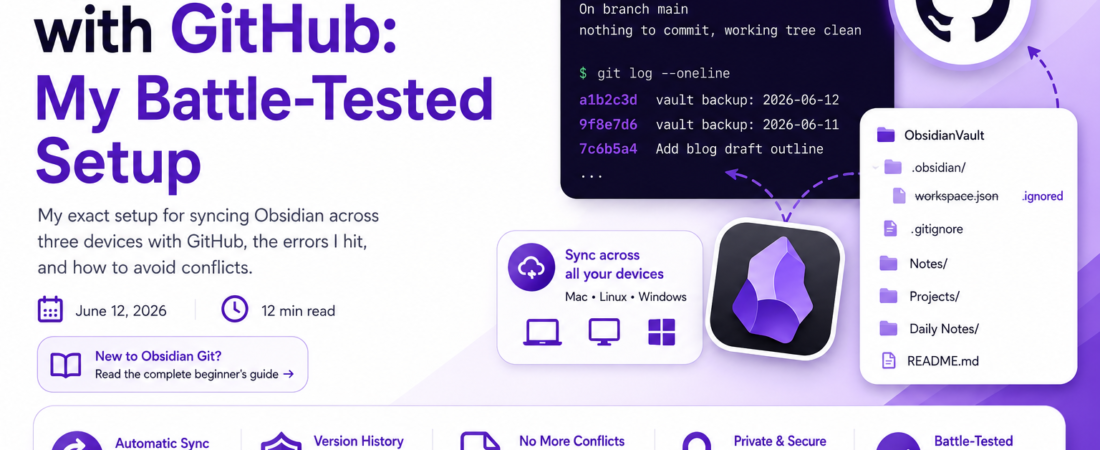
Meta description: I sync my Obsidian vault with GitHub daily across three devices. Here’s my exact setup, the errors I hit, and how to avoid conflicts.
Last updated: June 12, 2026
I started using Obsidian for everything — work notes, blog drafts, even this article’s outline. The problem hit the first time I switched from my desktop to my laptop and realized half my notes weren’t there. I needed a sync solution that wouldn’t lock me into a paid service, so I turned to GitHub as my backend.
TL;DR
- Use Git with the Obsidian Git community plugin for automatic commits and pulls
- Set up a
.gitignoreto exclude the.obsidian/workspace.jsonfile, which causes constant merge conflicts - Schedule auto-pull on startup and auto-push on a timer to avoid manual syncing
Why Sync Obsidian with GitHub Matters
Obsidian stores notes as plain Markdown files in a local folder, which makes it a perfect fit for version control. Unlike Obsidian Sync (the official paid option), Git gives you full history, free storage on GitHub, and the ability to review changes like code.
In my experience, the biggest win isn’t just backup — it’s the diff history. I’ve recovered deleted notes from three months back just by checking git log.
Pro Tip: Make your vault repo private. Even “harmless” notes often contain API keys, personal info, or draft content you don’t want indexed publicly.
Prerequisites
Before starting, you’ll need:
- Git installed locally (
git --versionshould return 2.30+) - A GitHub account with a private repository created
- Obsidian desktop app (this workflow doesn’t fully work on mobile without extra setup)
- SSH key configured for GitHub authentication
Step-by-Step Implementation
Step 1: Initialize Your Vault as a Git Repository
Open a terminal in your vault folder and run:
cd ~/Documents/ObsidianVault
git init
git remote add origin git@github.com:yourusername/obsidian-vault.git
Step 2: Create a .gitignore File
This is the step most people skip, and it’s the one that caused me the most pain. The .obsidian/workspace.json file changes every time you open a different note, which means Git sees a “change” constantly even when your actual content hasn’t changed.
cat > .gitignore << 'EOF'
.obsidian/workspace.json
.obsidian/workspace-mobile.json
.trash/
EOF
Step 3: Install the Obsidian Git Plugin
Go to Settings → Community Plugins → Browse, search for “Obsidian Git” by Vinzent, and install it. After enabling it, restart Obsidian.
Step 4: Configure Auto-Sync Settings
In the Obsidian Git plugin settings, I use these values:
autoCommitAfter: 10  # minutes
autoPullOnStart: true
autoPushAfterCommit: true
commitMessage: "vault backup: {{date}}"
This setup commits and pushes every 10 minutes if there are changes, and pulls fresh content every time I open Obsidian.
Step 5: First Commit and Push
git add .
git commit -m "initial vault commit"
git push -u origin main
[INTERNAL LINK: related article]
Real-World Tips I Use in Production
I run this exact setup across a MacBook, a Linux desktop, and a Windows machine at work. A few things that made it bulletproof:
- I set
autoPullOnStart: trueso I never accidentally edit an outdated version - I avoid editing the same note on two devices within the same 10-minute window — that’s the one scenario where merge conflicts still happen
- I added a second remote pointing to a self-hosted Gitea instance as a backup, just in case GitHub has an outage
Security Note: Never commit a vault that contains plugin API keys in plain text config files. Check your
.obsidian/plugins/*/data.jsonfiles before your first push — I found a Notion API token sitting in one of mine.
Common Errors and How I Fixed Them
The first error I hit was:
error: failed to push some refs to 'github.com:yourusername/obsidian-vault.git'
hint: Updates were rejected because the remote contains work that you do not have locally
This happens when you edit on two devices without pulling first. The fix is running git pull --rebase origin main before pushing, which the Obsidian Git plugin can also be configured to do automatically.
The second issue was merge conflicts inside .md files themselves — Git inserts <<<<<<< HEAD markers directly into your notes. If this happens, open the file in a text editor (not Obsidian) to manually resolve the conflict markers, since Obsidian’s editor doesn’t render them clearly.
Frequently Asked Questions
Q: Can I sync Obsidian with GitHub for free? A: Yes, using a private GitHub repository and the Obsidian Git plugin costs nothing beyond your existing GitHub account.
Q: Does syncing Obsidian notes with GitHub work on mobile? A: It’s possible using the Obsidian Git plugin on Android with Termux, but iOS support is limited and unreliable.
Q: Why does my Obsidian vault keep showing merge conflicts? A: This is almost always caused by not excluding .obsidian/workspace.json in your .gitignore, or editing the same note on two devices before syncing.
Q: Is it safe to put my Obsidian notes on GitHub? A: Only if the repository is private and you’ve checked plugin config files for accidentally stored API keys or tokens.
Q: What’s the difference between Obsidian Git and Obsidian Sync? A: Obsidian Sync is a paid, official end-to-end encrypted service with built-in conflict resolution; Obsidian Git is free but requires more manual setup and basic Git knowledge.
About the Author
I’m a software engineer with over 8 years of experience building developer tools and automation workflows, working primarily across Node.js, Python, and Git-based infrastructure. I’ve maintained personal knowledge bases in Obsidian for the past four years across multiple devices and operating systems. When I’m not writing code, I write about the tools that actually make engineering life easier.