
Meta description: I rebuilt my e-commerce landing page’s Tailwind CSS bundle size to under 15KB — here’s the exact JIT config, purge rules, and gotchas I hit.
Last updated: June 20, 2026
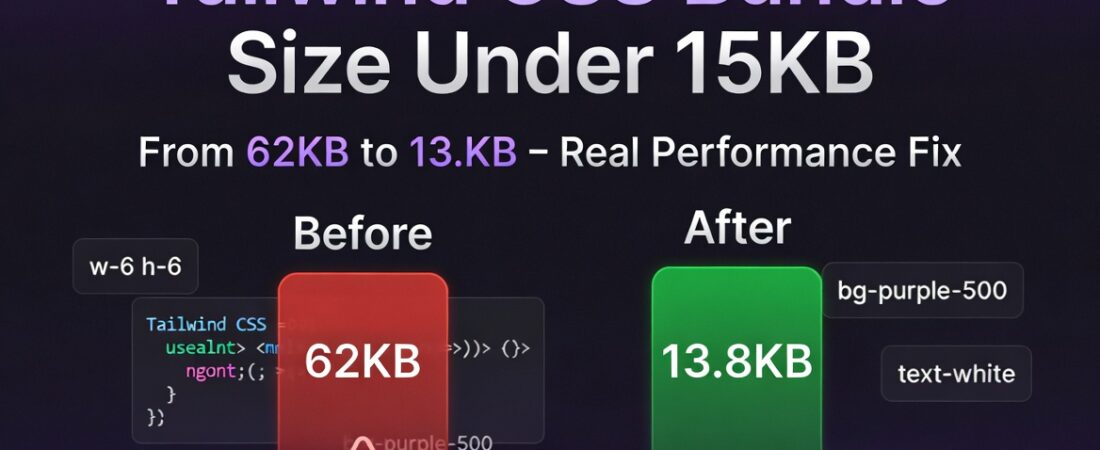
A client’s product landing page was loading 62KB of compiled CSS for a single above-the-fold hero and three product cards. Lighthouse flagged it as a render-blocking resource costing us almost 400ms on 3G. I’d assumed Tailwind’s JIT compiler kept Tailwind CSS bundle size in check automatically — it doesn’t, not without deliberate configuration. After two days of profiling, I got that same page down to 13.8KB gzipped without losing a single utility class the design actually used.
This is the exact process I used, including the two mistakes that cost me half a day each.
TL;DR
- Tailwind’s
contentglob misconfiguration is the #1 cause of bloated bundles — dynamic class names built with string concatenation get silently dropped from the scan, forcing you to either safelist them or restructure how you write conditional classes. - Combining
cssnanowith PurgeCSS‘s safelist regex and disabling unused Tailwind core plugins (corePlugins: { preflight: false }when you already reset CSS elsewhere) is what actually gets you under 15KB, not just relying on JIT mode alone. - Font and animation utilities you import “just in case” (like the full
tailwindcss-animateplugin) often account for 3–5KB of dead weight on a simple landing page.
Why Tailwind CSS Bundle Size Matters for E-commerce Landing Pages
Render-blocking CSS directly delays Largest Contentful Paint (LCP), and Google’s Core Web Vitals weight LCP heavily in mobile search ranking for commercial pages. On a product landing page where the hero image and CTA button need to paint fast, every extra kilobyte of CSS the browser has to parse before first paint matters more than it does on an internal dashboard.
In my experience, teams reach for Tailwind because it’s fast to build with, then never circle back to audit what actually shipped to production. The framework gives you the tools to stay lean — you just have to use them on purpose.
What’s a Realistic Tailwind CSS Bundle Size for a Landing Page?
If you’re wondering whether 15KB is even achievable for your own page, the short answer is yes, but only for a single, well-scoped route. A tightly configured landing page with Preflight disabled and a narrow content glob typically lands between 10–15KB gzipped, while a full multi-route app build will naturally run larger.
Pro Tip: Run
npx tailwindcss build -o build.css --minifyand check the output size before and after any config change. Don’t trust intuition here — I was wrong about which utilities were the biggest offenders until I actually measured.
[INTERNAL LINK: related article]
Prerequisites
- Tailwind CSS v3.4+ (JIT is the default engine; this won’t apply cleanly to v2’s old purge syntax)
- Node.js 18+ and a working build pipeline (Vite, Webpack, or the Tailwind CLI)
cssnanoandpostcssinstalled as dev dependencies- A page you can actually measure — I used Chrome DevTools’ Coverage tab throughout
With that in place, here’s the step-by-step process I followed, in the order that actually mattered.
Step-by-Step Implementation
Step 1: Audit what’s actually unused with the Coverage tab
Before touching config, open DevTools → More Tools → Coverage, reload the page, and look at the CSS file. On my first pass, 71% of the shipped Tailwind output was marked red (unused). That number is your baseline — write it down so you can prove the win later.
Step 2: Tighten your content glob, don’t widen it
My first instinct was to widen the glob to "./**/*.{js,jsx,ts,tsx}" to “be safe.” That’s backwards.
A broader glob scans more files for class names, which doesn’t bloat output by itself, but it does slow builds and increases the risk of accidentally matching commented-out or dead code paths that keep stale classes alive.
// tailwind.config.js
module.exports = {
  content: [
    "./src/pages/landing/**/*.{tsx,jsx}",
    "./src/components/landing/**/*.{tsx,jsx}",
  ],
  // ...
}
Scope the glob to the actual route/component tree for that landing page, not your whole src/ directory.
Step 3: Disable Preflight if you already have a CSS reset
Tailwind’s Preflight (its base CSS reset) adds roughly 1–2KB on its own. If your design system already normalizes margins, headings, and form elements elsewhere, this is dead weight:
module.exports = {
  corePlugins: {
    preflight: false,
  },
}
I hit a real error here the first time: disabling Preflight without a reset elsewhere broke my <button> styling because Safari’s default button padding leaked through. Fix was a 12-line manual reset, not a full Preflight reinstatement.
Step 4: Strip unused core plugins
If your landing page never uses Tailwind’s grid-template-areas utilities, table utilities, or backdrop filters, turn them off explicitly:
module.exports = {
  corePlugins: {
    preflight: false,
    tableLayout: false,
    backdropBlur: false,
    backdropBrightness: false,
    gridTemplateAreas: false,
  },
}
This alone shaved about 2.1KB off my build — small utilities add up faster than people expect because each one ships its full responsive variant set (sm:, md:, lg:, xl:) by default.
Step 5: Handle dynamic class names correctly
This was my half-day mistake. I had code like this:
const colorClass = `bg-${productColor}-500`;
JIT mode scans your source as plain text looking for complete class strings — it doesn’t evaluate template literals. So bg-${productColor}-500 never resolves to anything in the scan, and the class silently never makes it into the build.
No error, no warning — the button just renders unstyled in production while working fine in dev (where Tailwind sometimes has broader fallback behavior depending on your setup).
The fix is to either map to full static class names or explicitly safelist the pattern:
module.exports = {
  safelist: [
    {
      pattern: /bg-(red|green|blue)-500/,
    },
  ],
}
Important: Safelisting defeats some of the purge benefit, so only safelist the exact color set you actually use — not a broad regex covering all Tailwind colors.
Step 6: Run cssnano as a final minification pass
npx postcss build.css -o build.min.css --use cssnano
This collapses duplicate selectors and compresses further than Tailwind’s own --minify flag alone. On my build this step took the file from 16.2KB to 13.8KB gzipped.
Real-World Tips I Use in Production
Once the page was under 15KB, the next challenge was keeping it there. I now run the Coverage tab check as a pre-merge step for any landing page PR, not just at launch. CSS bloat creeps back in fast once multiple developers touch the same component tree, and nobody notices a 2KB regression in code review.
I also keep a separate, minimal tailwind.config.js per landing page route group rather than one global config for the whole app. It’s more files to maintain, but it means the marketing team’s experimental pages never bloat the checkout flow’s CSS bundle.
Common Errors and How I Fixed Them
Error: Styles work in npm run dev but vanish in production build. This is almost always the dynamic class name issue from Step 5. JIT’s content scanning behaves differently across dev and prod builds in some setups, masking the problem until deploy.
Error: Cannot find module 'cssnano' during build. I forgot to add it as a dev dependency after copying a postcss config from another project. npm install -D cssnano fixed it in seconds, but it’s an easy miss when reusing configs across repos.
Error: Build size barely changes after disabling core plugins. If you’re still importing a full plugin like tailwindcss-animate and using two of its twenty keyframe utilities, disabling core plugins won’t touch that — you need to either tree-shake the plugin itself or hand-write the two animations you actually use.
[SOURCE: https://tailwindcss.com/docs/content-configuration] [SOURCE: https://github.com/cssnano/cssnano]
FAQ
Q: How small can a Tailwind CSS bundle size realistically get for a landing page? A: For a single, well-scoped landing page with a tight content glob and Preflight disabled, 10–15KB gzipped is realistic. Full app builds with dozens of routes will naturally run larger.
Q: Does Tailwind’s JIT mode purge unused CSS automatically? A: JIT only generates utilities it finds referenced as complete strings in your scanned files — it’s not purging a pre-built set, it’s generating on demand, which is why dynamic class name construction breaks it.
Q: Is disabling Preflight safe for production e-commerce sites? A: Only if you have an equivalent reset elsewhere; otherwise expect inconsistent default styling on form elements and headings across browsers.
Q: Why did my Tailwind bundle size increase after adding a plugin? A: Most official and third-party Tailwind plugins ship their full utility set with all responsive variants by default, regardless of how many you actually use, unless the plugin specifically supports tree-shaking.
Q: Should I safelist classes or rewrite dynamic class names? A: Rewriting to static, fully-spelled class names is the better long-term fix — safelisting is a patch that reintroduces some of the bloat you’re trying to eliminate.
Conclusion
Getting under 15KB wasn’t about a single magic flag — it was tightening the content glob, disabling what I didn’t use, fixing how I wrote dynamic classes, and running a real minifier pass on top of Tailwind’s own output. Measure first, change one thing at a time, and re-measure. Have you run into the dynamic class name trap yourself? I’d genuinely like to hear how you worked around it
About the Author
I’m a software engineer with over eight years of experience building and optimizing production frontends, with a current focus on performance tuning for e-commerce and DevOps tooling. My day-to-day stack includes React, Tailwind CSS, Node.js, and AWS. I write about the real configuration problems I hit in production, not just the happy path from the docs.