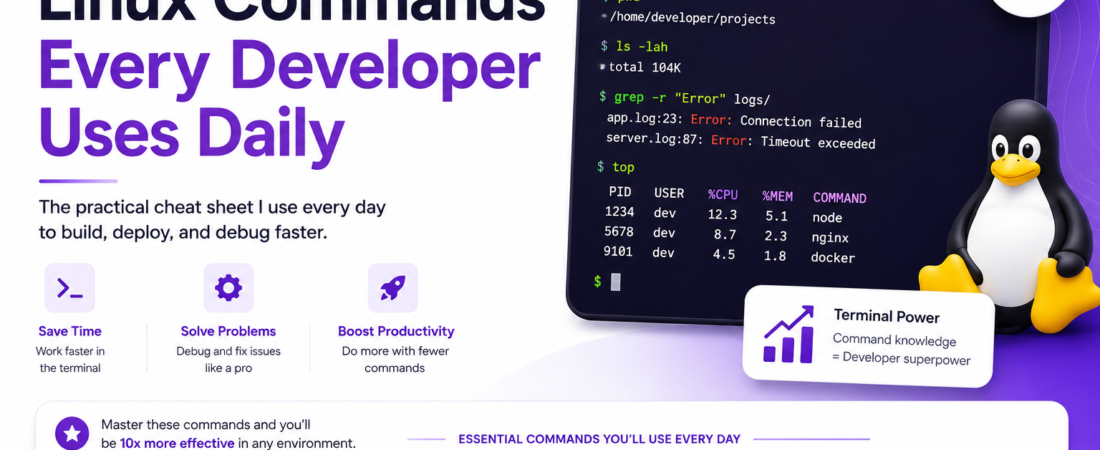
description: “I use these Linux commands every single day as a developer. From file navigation to process management, this is the practical cheat sheet I wish I’d had from day one.”
Last updated: June 25, 2026
I still remember the first time a senior dev told me to “just SSH in and check the logs.” I opened a terminal, typed cd /var/log, ran ls, stared at a wall of filenames, and had absolutely no idea what I was looking at. That was ten years ago. Today, I live in the terminal. I navigate filesystems faster than most people navigate a GUI, and I debug production issues without ever opening a browser.
The Linux commands for developers I’m sharing here aren’t a dump of every flag in every man page. These are the commands I actually use daily — the ones I’d write on a whiteboard for a junior dev on their first week. If you’re writing code on macOS or Linux, or deploying anything to a remote server, these commands will make you measurably faster.
TL;DR
- Master
grep,find,awk, andsed— they’re the backbone of Linux text processing and log analysis - Learn process management (
ps,kill,htop,lsof) and you’ll never be locked out of a frozen server again - Combining commands with pipes (
|) and redirects (>,>>) multiplies what you can do without writing a single script
Why Linux Commands Still Matter for Modern Developers
I hear this sometimes: “Why bother with the terminal when I have VS Code and Docker Desktop?” Here’s my honest answer: because at 3am, when your pod is OOMKilled in production and you’re SSH’d into a node with no GUI, the terminal is all you have.
Bash commands and Unix tools predate every IDE, every cloud provider, and every container runtime. They’re available on virtually every server you’ll ever touch. The developers I’ve worked with who are truly fast — the ones who diagnose issues in minutes that take others hours — are fluent in the terminal.
This guide focuses on Ubuntu/Debian-based systems, the most common Linux flavor in cloud environments. Everything here also works on macOS with minor variations, and on WSL2 on Windows.
Prerequisites
- A Linux or macOS terminal (or WSL2 on Windows 11)
- Basic comfort with opening a terminal and typing commands
- No root access required for most of these — a standard user account is fine
The Linux Commands That Actually Matter
Navigating and Managing the File System
These are the Linux file system commands I use hundreds of times a day:
pwd               # Print working directory — where am I?
ls -lah           # List files: long format, human-readable sizes, hidden files
cd -              # Jump back to the previous directory
mkdir -p dir/sub  # Create nested directories in one shot
cp -r src/ dst/   # Recursive copy of a directory
mv file.txt ./archive/  # Move or rename a file
rm -rf dir/       # Remove a directory recursively
The ls -lah combination is muscle memory at this point. The -h flag gives human-readable file sizes (KB, MB, GB) instead of raw byte counts. The -a flag shows hidden files (dotfiles) — critical when debugging missing .env or .gitconfig files.
One real gotcha: rm -rf has no undo. I once watched a teammate run it on the wrong path on a dev server and wipe a folder they needed. Modern Linux kernels block the most catastrophic forms of this, but always run ls on the target path before a recursive delete. It takes two seconds and has saved me more than once.
Important: Before running
rm -rf <path>, always verify the path by runningls <path>first. There is no recycle bin in the terminal.
Searching and Filtering with grep, find, and awk
This is where terminal productivity starts to feel like a superpower. grep is the first tool I reach for when hunting through logs, codebases, or config files.
# Find all occurrences of "Error" in a log file, with line numbers
grep -n "Error" app.log

# Search recursively through all .js files for a function name
grep -r "handleSubmit" --include="*.js" ./src

# Case-insensitive search with 3 lines of context before and after
grep -i -C 3 "timeout" nginx.log
The -r flag plus --include turns grep into a lightweight code search tool. I use this constantly to find where a function is called across a large codebase without spinning up a full IDE index.
find is for locating files by name, type, or modification date:
# Find all .env files anywhere in the current tree
find . -name "*.env" -type f

# Find files modified in the last 24 hours
find /var/log -mtime -1 -type f

# Find and delete all .DS_Store files after a macOS migration
find . -name ".DS_Store" -delete
awk looks intimidating until you realize there are two patterns that cover 90% of its real-world use:
# Print only the second column of a space-separated file
awk '{print $2}' access.log

# Sum values in column 5 of a CSV
awk -F',' '{sum += $5} END {print sum}' data.csv
The -F',' flag sets the field separator — essential for parsing CSV or TSV files without importing any library.
[SOURCE: https://www.gnu.org/software/grep/manual/grep.html]
Process Management Commands
When something is consuming all your CPU or memory, you need to find and stop it fast. These process management Linux commands are what I reach for:
ps aux                  # List all running processes with CPU and memory
ps aux | grep nginx     # Find a specific process by name
kill -9 PID             # Force-kill a process by PID
killall node            # Kill all processes named "node"
htop                    # Interactive process manager (install it — it's worth it)
lsof -i :3000           # Find what's running on port 3000
lsof -i :3000 is something I use almost every day in development. Nothing is more frustrating than Error: listen EADDRINUSE: address already in use :::3000 — this command instantly shows you which PID owns the port so you can terminate it cleanly:
lsof -i :3000      # Find the PID
kill -9 <PID>      # Kill it
lsof -i :3000      # Confirm it's gone
htop is the interactive version of top and one of the first things I install on any new server. It shows CPU usage per core, memory, swap, and lets you kill processes interactively with the F9 key. Install it with:
sudo apt update && sudo apt install htop -y
One trade-off worth knowing: htop isn’t installed by default on minimal cloud images (Ubuntu 22.04 minimal, Alpine Linux). Keep ps aux | grep in your muscle memory for situations where you’re on a stripped-down container with no package manager access.
Viewing and Manipulating Text Files
cat file.txt              # Print an entire file to stdout
less file.txt             # Page through a large file (q to quit)
tail -f app.log           # Follow a log file in real time
tail -n 100 app.log       # Show the last 100 lines
head -n 20 app.log        # Show the first 20 lines
wc -l file.txt            # Count lines in a file
sed -i 's/old/new/g' config.txt  # Replace all occurrences in-place
tail -f is the command I keep open during every deployment. I’ll have it running in one terminal window watching app.log or nginx/error.log while applying changes in another. It’s a live stream of what your application is doing in real time.
sed -i 's/foo/bar/g' is a fast find-and-replace across a file without opening an editor — especially useful in shell scripts or CI pipelines where you need to patch a config file before a deploy step.
Disk Space and Network Utilities
df -h                            # Check disk usage across all filesystems
du -sh ./                        # Check the size of the current directory
du -sh ./* | sort -rh | head -10 # Find your 10 largest directories
curl -I https://example.com      # Check HTTP response headers
wget -O file.zip https://example.com/file.zip  # Download a file
ss -tlnp                         # List all listening ports (modern replacement for netstat)
ssh user@host                    # Connect to a remote server
scp file.txt user@host:/path/    # Secure copy a file to a remote server
du -sh ./* | sort -rh | head -10 is one of my favorite compound commands. When a server disk is 98% full and you have no idea why, this identifies the ten largest directories in under a second. I’ve used it to find rogue log files, forgotten Docker images, and abandoned build caches consuming dozens of gigabytes.
Pro Tip: On Ubuntu 20.04+,
netstathas been replaced byss. Usess -tlnpto list listening ports — it’s faster and shows process names by default without needing extra flags.
[SOURCE: https://www.gnu.org/software/bash/manual/bash.html]
Shell Productivity Tricks That Change Everything
These aren’t single commands — they’re patterns that make every other command faster.
!!                            # Repeat the last command
Ctrl+R                        # Reverse-search through command history
history | grep "docker"       # Search your history for a specific command
command1 && command2          # Run command2 only if command1 succeeds
command1 || command2          # Run command2 only if command1 fails
command > file.txt            # Redirect stdout to a file (overwrites)
command >> file.txt           # Append stdout to a file
command 2>&1 | tee output.log # Capture both stdout and stderr to a log file
Ctrl+R reverse history search is something I use dozens of times a day. Start typing any part of a previous command and it surfaces the most recent match. Press Ctrl+R again to cycle through older matches. This alone is worth the price of getting comfortable with bash commands.
The && chaining pattern is how I structure deployment steps:
npm run build && npm run test && pm2 restart app
If any step fails, the chain stops — no silent partial deploys that leave your app in a broken intermediate state.
Real-World Tips I Use in Production
Alias your most-used commands. Add these to your ~/.bashrc or ~/.zshrc and run source ~/.bashrc to apply immediately:
alias ll='ls -lah'
alias gs='git status'
alias dps='docker ps --format "table {{.Names}}\t{{.Status}}\t{{.Ports}}"'
alias ports='ss -tlnp'
Small shortcuts compound over thousands of commands per day.
Use tmux for long-running remote sessions. If you’re doing anything on a remote server that takes longer than your SSH timeout, use tmux. Sessions survive disconnection. I’ve run multi-hour database migrations inside tmux without ever worrying about a dropped connection killing the process mid-run.
Learn jq for JSON processing. When your API returns JSON and you need to extract one field from a curl response, jq is the right tool:
curl -s https://api.example.com/user/1 | jq '.data.email'
It handles deeply nested JSON beautifully and is much faster than reaching for Python or Node.js for a quick parse. Install with sudo apt install jq -y.
Common Errors I Encountered and Fixed
Permission denied when running a shell script: The file isn’t executable. Fix it with chmod +x script.sh, then run as ./script.sh. This catches me every time I clone a repo with scripts that weren’t committed as executable.
command not found: htop on a fresh server: htop isn’t installed by default on minimal cloud images. Fix: sudo apt update && sudo apt install htop -y. Always check which htop before assuming it’s available.
grep returns no results when you know the text exists: Usually a character encoding issue or binary file. Try grep -a to force text mode, or check the actual file type first with file logfile.gz before attempting to read it.
lsof not showing the process for a port: Run it with sudo. Without elevated privileges, lsof can only see processes owned by your own user, and the port may be owned by a system service or a different user entirely.
FAQ
Q: What are the most important Linux commands for beginner developers to learn first? A: Start with navigation (cd, ls, pwd), file operations (cp, mv, rm), and text viewing (cat, less, tail). Once those feel natural, add grep, find, and process management (ps, kill, lsof). Get comfortable with ten commands before expanding — depth beats breadth at the beginning.
Q: How do I search for text inside files using Linux terminal commands? A: Use grep -r "search_term" ./directory for recursive search. Add --include="*.js" to limit to specific file extensions, -n to show line numbers, and -i for case-insensitive matching. For more complex pattern matching or columnar data, use awk or sed.
Q: What Linux commands should I know for debugging production server issues? A: Focus on tail -f for live log watching, htop for resource usage, lsof -i :PORT for port conflicts, df -h for disk space, and ss -tlnp for network connections. These five commands handle roughly 80% of production debugging scenarios.
Q: How do I run a command in the background in Linux without it stopping when I close the terminal? A: Use nohup command & to detach from the terminal session, or better yet, use tmux or screen for interactive sessions you need to reattach to. For persistent production services, use a proper process manager like systemd or pm2 instead of background jobs.
Q: What is the difference between the > and >> redirect operators in Linux shell commands? A: The > operator redirects stdout to a file and overwrites any existing content. The >> operator appends to the file without overwriting. For logging, always use >> to avoid losing existing entries. Combine with 2>&1 to also capture stderr in the same file.
Conclusion
You don’t need to memorize every flag in every man page. What you need is a core set of Linux commands for developers that you can reach for automatically, without thinking. The commands in this guide cover file navigation, text search, process management, disk diagnostics, and shell productivity — the building blocks of everything else you’ll do in the terminal.
If you’re new to the terminal, pick three commands from this list and force yourself to use them every day for a week. Reach for grep instead of a GUI search tool. Use tail -f instead of a log viewer. Fluency comes from repetition, not from reading.
About the Author
I’m a software engineer with over 10 years of experience working on backend systems, DevOps pipelines, and distributed infrastructure. I’ve worked on everything from small startup monoliths to large-scale microservices deployed on Kubernetes, and I’ve spent a significant chunk of that time SSH’d into Linux servers diagnosing issues at odd hours. My daily toolbox includes Go, Python, Docker, and a terminal that never fully closes. I write about developer productivity and systems fundamentals because the command line is still the fastest path between a problem and a solution.