
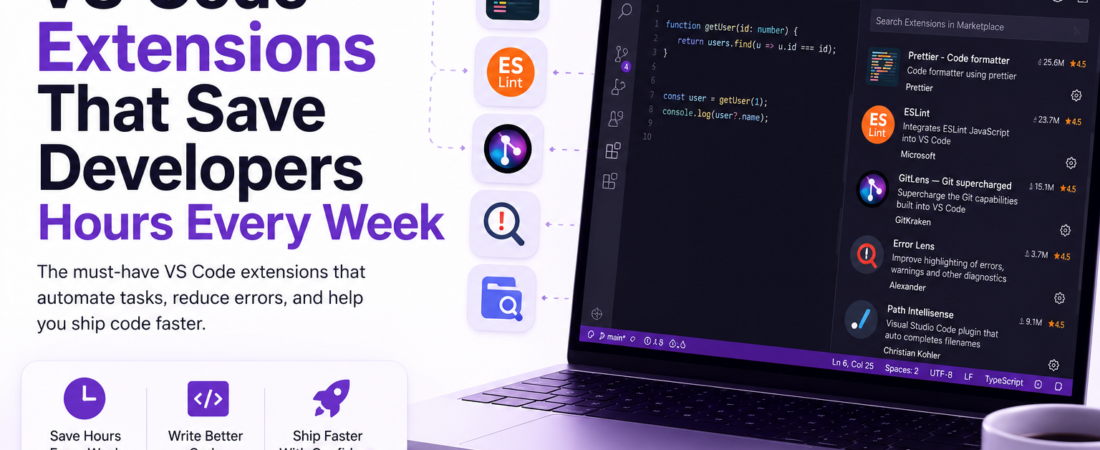
Meta description: I tested dozens of VS Code extensions and found the ones that genuinely cut hours from my dev week — here’s my hands-on list with setup tips and real gotchas.
Last updated: June 2026
Introduction
Two years ago, I was spending nearly 40 minutes a day on tasks that had no business eating my time — manually reformatting JSON payloads, hunting down unused imports, and switching between browser and editor just to preview Markdown docs. A senior engineer on my team watched me work for about five minutes and then said, “You do know VS Code can do all of that automatically, right?”
That conversation changed how I work. Since then, I’ve installed, tested, and — honestly — uninstalled a lot of extensions. What I’m sharing here is the shortlist: the VS Code extensions that actually survived on my machine because they save me measurable time every single week.
TL;DR
- The right VS Code extensions can automate formatting, linting, error detection, and even Git workflows without leaving your editor.
- I focus on extensions with active maintenance, low performance overhead, and real productivity ROI — not just “cool” features.
- Setup matters as much as installation: I’ll show you the exact settings that make these tools shine.
Why VS Code Extensions Matter for Developer Productivity
Developer productivity isn’t just about typing speed. It’s about the friction between your idea and working code. Every time you alt-tab to a browser, manually reformat a file, or squint at a variable name trying to remember its type, you break flow.
VS Code’s extension marketplace has over 50,000 extensions — which sounds great until you realize that most of them are abandoned, poorly maintained, or bloat your editor’s startup time. In my experience, adding too many extensions is just as harmful as adding none. The goal is a curated, intentional toolkit.
[INTERNAL LINK: related article]
Prerequisites
Before installing anything, make sure you have:
- VS Code version 1.85 or later (check via
Help > About) - Node.js 18+ installed if you work with JavaScript/TypeScript projects
- Familiarity with VS Code’s
settings.json— pressCtrl+Shift+Pand type “Open User Settings (JSON)”
The VS Code Extensions I Actually Use in Production
1. Prettier — Code Formatter
Prettier is the single extension that has saved me the most time. It enforces consistent formatting across every file type I touch — JavaScript, TypeScript, CSS, JSON, Markdown — on every save.
Install:
ext install esbenp.prettier-vscode
My settings.json config:
{
  "editor.formatOnSave": true,
  "editor.defaultFormatter": "esbenp.prettier-vscode",
  "prettier.singleQuote": true,
  "prettier.semi": false
}
Gotcha I hit: When working on a monorepo, Prettier was picking up the wrong config file. The fix was adding "prettier.configPath": "./.prettierrc" explicitly in workspace settings, not user settings.
Pro Tip: Add a
.prettierignorefile to skip auto-generated files likedist/,build/, and*.min.js. Formatting those wastes time and creates noisy diffs.
[SOURCE: https://prettier.io/docs/en/editors.html]
2. ESLint
ESLint catches bugs before they reach runtime. I’ve used it with React, Node, and plain TypeScript projects, and the VS Code integration means I see red underlines the moment I write problematic code — not after a CI pipeline fails 10 minutes later.
Install:
ext install dbaeumer.vscode-eslint
Config snippet for a TypeScript project:
{
  "eslint.validate": ["javascript", "typescript", "typescriptreact"],
  "editor.codeActionsOnSave": {
    "source.fixAll.eslint": true
  }
}
Real error I fixed: I kept seeing ESLint: No ESLint configuration file found after installing the extension. The fix: ESLint needs a config file in your project root. Running npx eslint --init generates one interactively.
Trade-off: ESLint with TypeScript rules can slow down large codebases. If you notice lag, set "eslint.run": "onSave" instead of "onType".
3. GitLens — Git Supercharged
GitLens transforms VS Code’s built-in Git panel into a full-featured history browser. The feature I use most is inline blame — hovering over any line shows who changed it, when, and the commit message. That alone has saved me from breaking changes more times than I can count.
Install:
ext install eamodio.gitlens
I keep the free tier. The paid GitLens+ features are nice but not necessary for individual developers. The inline blame, commit graph, and file history are all free.
Limitation: On repos with very long history (5+ years, thousands of commits), loading the commit graph can take 3–5 seconds. Worth it, but don’t expect instant results on legacy codebases.
4. Error Lens
Error Lens takes VS Code’s default error indicators — those faint red squiggles — and projects the actual error message inline, right on the offending line. No more hovering to read what went wrong.
Install:
ext install usernamehw.errorlens
Settings I use:
{
  "errorLens.enabledDiagnosticLevels": ["error", "warning"],
  "errorLens.followCursor": "activeLine"
}
This pairs perfectly with ESLint and TypeScript’s language server. When I write a function with the wrong return type, I see the error text in red right on that line — no clicks required.
5. Path Intellisense
Path Intellisense autocompletes file paths as you type them in import statements. It sounds minor until you’re three directories deep in a monorepo and can’t remember the exact folder name.
Install:
ext install christian-kohler.path-intellisense
No configuration needed — it works out of the box. One gotcha: it doesn’t respect tsconfig.json path aliases by default. For that, you’ll also need the TypeScript Path Aliases extension or configure "typescript.preferences.importModuleSpecifier": "non-relative".
6. Docker (by Microsoft)
If you run containers locally, the Docker extension lets you manage images, containers, and Docker Compose files without leaving VS Code. I use it to tail container logs, exec into running containers, and inspect volumes — all from the sidebar.
Install:
ext install ms-azuretools.vscode-docker
Important: This extension requires Docker Desktop or Docker Engine to be running on your machine. It’s a UI layer, not a Docker replacement.
[SOURCE: https://marketplace.visualstudio.com/items?itemName=ms-azuretools.vscode-docker]
7. REST Client
REST Client lets you write and run HTTP requests directly in .http files inside VS Code. I replaced Postman with this for quick API testing during development. The requests live in your repo alongside your code — no more “where did I save that Postman collection?”
Example .http file:
### Get user by ID
GET https://api.example.com/users/42
Authorization: Bearer {{token}}
Content-Type: application/json

### Create user
POST https://api.example.com/users
Content-Type: application/json

{
  "name": "Jane Doe",
  "email": "jane@example.com"
}
Install:
ext install humao.rest-client
You can define environment variables in settings.json using "rest-client.environmentVariables" — no hardcoded secrets in your .http files.
Real-World Tips I Use in Production
Profile your extension load time. Run code --prof-startup to see which extensions are slowing down VS Code’s startup. I cut my startup time from 4 seconds to under 1 second by disabling workspace-specific extensions globally.
Use workspace extension recommendations. Add a .vscode/extensions.json file to your repo:
{
  "recommendations": ["esbenp.prettier-vscode", "dbaeumer.vscode-eslint"]
}
When teammates open the project, VS Code prompts them to install the same extensions. Consistency across the team matters more than individual preference.
Disable, don’t uninstall. If you work in multiple languages, disable language-specific extensions per workspace rather than uninstalling them. This keeps your global install clean.
Common Errors and How I Fixed Them
“Prettier is not formatting on save” — Nine times out of ten, another extension is set as the default formatter. Check "editor.defaultFormatter" in your settings and set it explicitly to "esbenp.prettier-vscode".
“ESLint shows no errors but CI fails” — Your local ESLint config and the one used by CI may differ. Lock your ESLint version in package.json and commit your .eslintrc file to ensure parity.
“GitLens is slow on large repos” — Disable the commit graph auto-load: "gitlens.graph.layout": "editor" and only open it on demand.
FAQ
Q: What are the best VS Code extensions for JavaScript developers in 2025? A: For JavaScript, I recommend Prettier, ESLint, Path Intellisense, REST Client, and GitLens as a core set. Together they handle formatting, linting, imports, API testing, and Git history without overlapping functionality.
Q: Do VS Code extensions slow down editor performance? A: Yes, they can. Extensions that run on every keystroke (like some linters) are the biggest offenders. I recommend profiling with code --prof-startup and setting heavy extensions to run onSave instead of onType.
Q: How do I share VS Code extensions with my team automatically? A: Add a .vscode/extensions.json file with a "recommendations" array to your repo. VS Code will prompt teammates to install those extensions when they open the project.
Q: Is GitLens free or do I need a paid plan? A: The core GitLens features — inline blame, file history, commit search — are free. GitLens+ adds features like the visual commit graph and worktrees, which require a free account or paid plan for private repos.
Q: Can I use REST Client instead of Postman for API development? A: For individual developers and small teams, absolutely. REST Client covers GET, POST, PUT, DELETE, authentication headers, and environment variables. The main thing you lose compared to Postman is a GUI for organizing large collections and team-sharing features.
Conclusion
The right set of VS Code extensions doesn’t just make you faster — it removes entire categories of manual work from your day. Prettier and ESLint alone can give you back 20–30 minutes daily if you’re still formatting and linting by hand.
About the Author
I’m a full-stack software engineer with over 8 years of experience building web applications in TypeScript, Node.js, and React. My daily toolkit revolves around VS Code, Docker, and a healthy obsession with developer experience. I write about the tools and practices that have made the biggest difference in my own workflow — the ones I’d recommend to a teammate on day one.
W