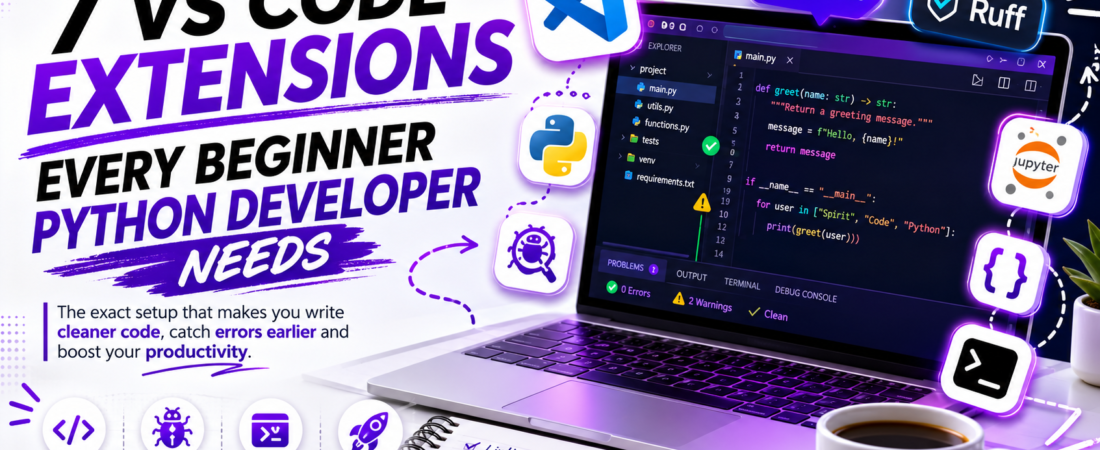
Stop fighting your editor — here’s the exact VS Code setup that made Python actually click for me, from linting to debugging to virtual environments.
Last updated: July 2026
I remember my first month writing Python in VS Code with zero extensions installed. I had no autocomplete worth trusting, no inline error highlighting, and I was debugging with print() statements sprinkled through a 300-line script like breadcrumbs. It took me an embarrassing three weeks to realize the editor wasn’t the problem — my VS Code extensions setup was.
Once I installed the right set of Python VS Code extensions, my workflow changed almost overnight: real-time linting caught bugs before I ran the code, the debugger let me step through logic instead of guessing, and virtual environment switching stopped being a manual chore. This guide walks through the exact extensions I still use today, in the order I’d install them if I were starting over.
TL;DR
- The Python extension by Microsoft plus Pylance are non-negotiable — they give you IntelliSense, type checking, and a real debugger out of the box.
- Ruff replaced three separate linting/formatting extensions in my setup and runs noticeably faster than
flake8+blackcombined. - A solid Jupyter extension and autoDocstring save hours per week once you’re writing anything beyond throwaway scripts.
Why Your Extension Choices Actually Matter
A beginner Python developer’s biggest early obstacle isn’t syntax — it’s not knowing when code is wrong until you run it. The right VS Code extensions for Python shift that feedback loop from “run and hope” to “see the error as you type.” That single change is why experienced developers rarely code Python in a bare editor.
There’s also a real cost to installing the wrong things. I went through a phase of stacking five different linting extensions that fought each other, produced conflicting squiggly lines, and slowed VS Code down on every save. Fewer, well-chosen extensions beat a pile of overlapping ones.
Prerequisites
Before installing anything, make sure you have:
- VS Code installed (version 1.85 or later recommended)
- Python 3.10+ installed and available on your system
PATH - Basic comfort opening the Extensions panel (
Ctrl+Shift+Xon Windows/Linux,Cmd+Shift+Xon macOS)
Pro Tip: Run
python3 --versionin your terminal before you start. I’ve lost time troubleshooting “broken” extensions that were actually just pointed at a Python 3.7 interpreter left over from an old system install.
Step-by-Step: Installing the Extensions
Step 1: Python (by Microsoft)
This is the foundation. Search “Python” in the Extensions panel and install the one published by Microsoft — it has tens of millions of installs and is the official extension. It handles interpreter selection, environment detection, and wires up the debugger and test runner.
code --install-extension ms-python.python
Once installed, open the Command Palette (Ctrl+Shift+P) and run Python: Select Interpreter. In my experience, this single step fixes 80% of “VS Code can’t find my packages” complaints from beginners — it’s almost always an interpreter mismatch, not a broken install.
Step 2: Pylance
Pylance ships from the same team and adds fast, type-aware IntelliSense on top of the base Python extension. It’s installed automatically alongside the Python extension in most cases now, but I verify it’s active by checking the status bar for “Pylance” when a .py file is open.
code --install-extension ms-python.vscode-pylance
I set "python.analysis.typeCheckingMode": "basic" in my settings.json — it flags real type mistakes without the noise of strict mode, which I found overwhelming as a beginner.
Step 3: Ruff
I used to run black for formatting and flake8 for linting as two separate extensions. Ruff replaced both. It’s written in Rust, and the difference in save-time linting speed on a mid-size file was immediately noticeable — no more half-second lag every time I hit Ctrl+S.
code --install-extension charliermarsh.ruff
In settings.json, I enabled format-on-save with Ruff as the default formatter:
{
  "editor.formatOnSave": true,
  "[python]": {
    "editor.defaultFormatter": "charliermarsh.ruff"
  }
}
Important: If you already have
blackorautopep8extensions installed, disable their format-on-save behavior for Python files first. Running two formatters on save created a race condition for me where my file would sometimes get reformatted twice and show a false “unsaved changes” state.
Step 4: Jupyter
Even if you’re not doing data science, the Jupyter extension is useful for testing small snippets of logic interactively without writing a full script. I use it constantly when exploring a new library’s API for the first time.
code --install-extension ms-toolsai.jupyter
Step 5: autoDocstring
This generates docstring templates automatically based on your function signature. Type """ under a function definition and it scaffolds the parameter list, return type, and a description placeholder.
code --install-extension njpwerner.autodocstring
Step 6: Error Lens
Error Lens takes the red/yellow squiggly underlines VS Code already shows and prints the actual error message inline, at the end of the line. As a beginner, hovering over squiggles to read tooltips was slow — having the message visible immediately cut down how often I stopped to investigate an error.
code --install-extension usernamehw.errorlens
Step 7: Python Environment Manager (or venv from the Python extension)
Managing virtual environments through the terminal is fine once you’re comfortable, but early on I found the built-in environment picker (via the Python extension’s “Select Interpreter” command) enough to switch between project-specific venv folders without memorizing activation commands for different shells.
[INTERNAL LINK: related article]
Real-World Tips I Use in Production
- I keep a
.vscode/settings.jsonfile committed to each repo so formatting and linting rules are consistent for anyone who clones the project — no “works on my machine” formatting arguments. - I bind
Ctrl+Shift+Bto run my test suite via a custom task instead of typingpytestin the terminal every time. - For any project touching more than one Python version, I install
pyenvalongside these extensions — the Python extension respects whatever interpreterpyenvhas active.
Common Errors and How I Fixed Them
“Import could not be resolved” even though the package is installed. This almost always means Pylance is pointed at a different interpreter than the one where you ran pip install. Running Python: Select Interpreter and choosing the correct virtual environment fixed it every time for me.
Ruff and an old flake8 config disagreeing on line length. I had a leftover .flake8 file setting a max line length of 79 while my pyproject.toml told Ruff to use 100. Deleting the stale .flake8 file resolved the conflict — Ruff doesn’t read it.
Jupyter cells hanging with “Kernel starting” indefinitely. In my case this was caused by having two different ipykernel versions installed across a global environment and a project venv. Reinstalling ipykernel inside the active venv (pip install --upgrade ipykernel) fixed it.
FAQ
Q: What is the best VS Code extension for beginner Python developers? A: The Python extension by Microsoft combined with Pylance covers IntelliSense, debugging, and interpreter management, making it the essential starting point.
Q: Do I need both Ruff and Black installed in VS Code? A: No — Ruff can handle both linting and formatting on its own, so running Black alongside it is redundant and can cause conflicting format-on-save behavior.
Q: Why is my Python code not autocompleting in VS Code? A: This is usually caused by Pylance being inactive or pointed at the wrong interpreter; check the status bar and re-run Python: Select Interpreter.
Q: Is the Jupyter extension necessary if I’m not doing data science? A: It’s optional, but useful for quickly testing code snippets or exploring a new library interactively without creating a separate script file.
Q: How do I fix “Import could not be resolved” in VS Code Python? A: Select the correct Python interpreter for your project via the Command Palette, since this error almost always points to an interpreter mismatch rather than a missing package.
Conclusion
None of these extensions are magic on their own — the real gain comes from how they work together to shorten the feedback loop between writing code and knowing whether it’s correct. Start with the Python extension and Pylance, add Ruff once you’re tired of managing two formatters, and layer in the rest as your projects grow.
[SOURCE: https://marketplace.visualstudio.com/items?itemName=ms-python.python] [SOURCE: https://docs.astral.sh/ruff/editors/setup/]
About the Author
I’m a software engineer with over 8 years of experience building and shipping Python applications, from small automation scripts to production Django services. I spend most of my working day inside VS Code and have iterated on this extension setup across dozens of projects and a handful of painful migrations. When I’m not writing code, I’m usually breaking something in a home lab just to learn how to fix it.