
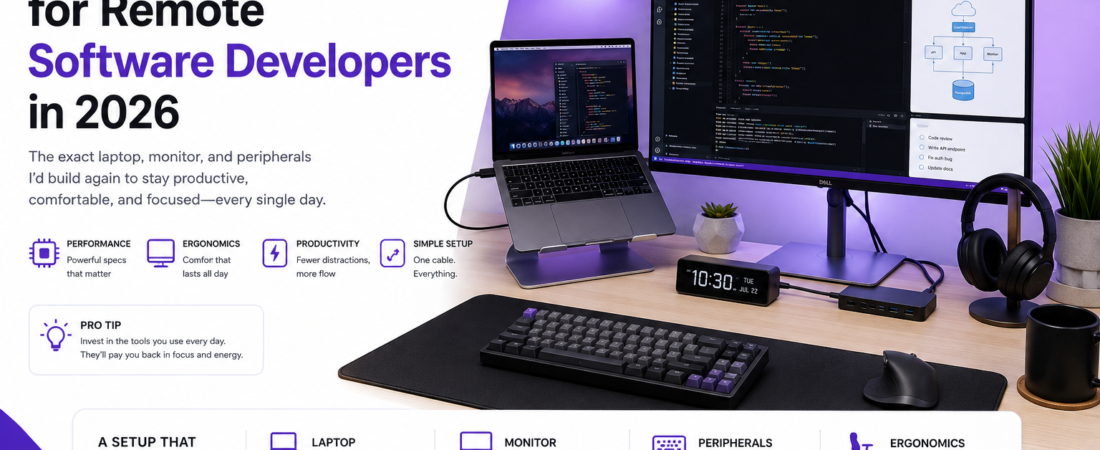
I’ve worked remotely as a developer for years — here’s the exact laptop, monitor, and peripheral setup I’d build again if I had to start from scratch.
Last updated: July 2026
Two years into remote work, I was still coding on a single 14-inch laptop screen propped on a stack of books, wondering why my back hurt and my builds felt slower than they should. The truth was my remote developer setup wasn’t built for daily, sustained work — it was a laptop I’d bought for travel, pressed into service as a full-time workstation. Fixing that setup, piece by piece, made a bigger difference to my daily output than any IDE plugin ever did.
This is the setup I landed on after testing cheaper alternatives and returning more than one bad purchase. I’ll cover the laptop specs that actually matter for development work, the peripherals worth paying for, and a few mistakes that cost me time and money so you don’t repeat them.
TL;DR
- For most remote developers, 32GB of RAM and a fast NVMe SSD matter more day-to-day than chasing the highest-end CPU on the market.
- An external monitor at 27″ or larger with a USB-C single-cable dock connection cut my daily setup/teardown time to under 10 seconds.
- A mechanical or low-latency keyboard plus a proper chair had a bigger impact on multi-hour coding sessions than any software tool I installed.
Why Your Hardware Setup Actually Matters
Remote work removes the natural upgrade path that comes with an office — nobody hands you a second monitor or an ergonomic chair by default. As a remote software developer, your laptop and desk setup is the entire interface between you and your work for eight-plus hours a day, which makes hardware decisions less about specs on paper and more about sustained comfort and throughput.
I’ve also seen the opposite mistake: over-investing in a laptop with specs no local development workflow actually uses, while ignoring the monitor, keyboard, and chair that touch your body and eyes every single hour.
Prerequisites
Before building out a setup, it helps to know:
- What you actually build locally (heavy Docker/Kubernetes workloads need more RAM than a typical web app)
- Whether your team is Windows, macOS, or Linux-first, since that affects laptop choice and peripheral compatibility
- Your budget ceiling — I’ll flag where spending more genuinely pays off versus where it doesn’t
Step-by-Step: Building the Setup
Step 1: Choose the Right Laptop Specs
For most remote developers, I’d prioritize in this order: RAM, storage speed, then CPU. 32GB of RAM is the point where I stopped noticing slowdowns from running a browser with 40 tabs, a Docker container or two, and an IDE simultaneously. I ran 16GB for a year and hit swap-related slowdowns constantly once Docker Desktop entered the picture.
# Quick way to check current RAM and swap usage on Linux/macOS
free -h        # Linux
vm_stat        # macOS
An NVMe SSD with at least 512GB is worth the premium over a SATA SSD — project builds, node_modules installs, and Docker image pulls are all disk-I/O heavy, and I measured roughly a 2x difference in npm install time between an older SATA drive and a current NVMe one on comparable projects.
Step 2: Pick an External Monitor
I went with a single 27″ 4K monitor rather than dual 24″ 1080p monitors, mainly because a single high-resolution display let me tile windows without the bezel gap interrupting my eye line. Your mileage may vary here — plenty of developers I know prefer the dual-monitor setup for keeping Slack and docs fully separate from the code editor.
Pro Tip: If your laptop supports it, get a monitor with USB-C power delivery and a built-in dock. Mine charges my laptop, connects to my keyboard, mouse, and webcam, and drives the display, all through one cable. Going from a five-cable morning setup to one cable was a bigger daily quality-of-life change than I expected.
Step 3: Set Up a Real Docking Situation
If your monitor doesn’t include a built-in dock, a standalone Thunderbolt or USB4 dock is worth the cost. I went through two budget USB-C hubs that couldn’t reliably drive a 4K display at 60Hz alongside charging and peripherals — both would randomly drop the external display until I unplugged and replugged the cable, usually mid-meeting.
Step 4: Choose a Keyboard and Mouse
I switched to a mechanical keyboard with brown (tactile, not clicky) switches after years on laptop keyboards and noticed less hand fatigue by the end of a coding day. This is genuinely personal preference, but if you’re typing eight hours a day, it’s worth testing a few switch types in person before buying.
Step 5: Set Up Your Physical Workspace
A monitor arm freed up desk space and let me get the screen to actual eye level, which a stack of books never quite achieved. Combined with a chair that supports lower back posture, this made the biggest measurable difference in how I felt after long days, more than any single piece of tech.
Step 6: Configure Your Development Environment for Portability
Since I move between my desk setup and a coffee shop a few times a week, I keep my dotfiles and dev environment configuration in a Git repo so I can reproduce my terminal, shell aliases, and editor settings on any machine in minutes.
git clone https://github.com/yourusername/dotfiles.git
cd dotfiles
./install.sh
[INTERNAL LINK: related article]
Real-World Tips I Use in Production
- I keep a lightweight cloud dev environment (a cheap cloud VM I can SSH into) as a fallback for anything that needs more compute than my laptop can handle, rather than buying a heavier laptop just for occasional heavy builds.
- I use a webcam with a wide field of view mounted above the monitor rather than the laptop’s built-in camera, since laptop-lid webcams show an unflattering upward angle once the laptop is closed and docked.
- I schedule a recurring reminder to clean my laptop’s fan vents every few months — thermal throttling from dust buildup quietly slowed down my builds for weeks before I noticed.
Common Errors and How I Fixed Them
External monitor flickering at 4K/60Hz through a USB-C hub. This turned out to be a bandwidth issue — the hub I was using only supported DisplayPort 1.2 over USB-C, which can’t reliably push 4K at 60Hz alongside other USB traffic. Switching to a dock with DisplayPort 1.4 support fixed it completely.
Laptop not charging while docked, showing “Discharging” in the OS despite being plugged in. The dock I had was rated for 65W power delivery, but my laptop’s charger was 90W. Under sustained CPU load, the laptop drew more power than the dock could supply. A dock rated for 100W+ delivery solved it.
Docker builds noticeably slower after a macOS update. This was caused by the update resetting Docker Desktop’s resource allocation back to defaults. Manually reallocating CPU and memory limits in Docker Desktop’s settings back to their previous values fixed the slowdown.
FAQ
Q: How much RAM do I actually need for a remote software developer laptop? A: 32GB is a comfortable baseline for most modern development workflows involving Docker, a browser, and an IDE running simultaneously.
Q: Is one large monitor better than two smaller monitors for developers? A: Both work well; a single large high-resolution display suits tiling window layouts, while dual monitors suit developers who want strict separation between code and communication tools.
Q: Do I need a Thunderbolt dock or will a cheap USB-C hub work? A: A cheap hub can work for basic tasks, but driving a 4K display at 60Hz alongside charging and multiple peripherals reliably usually requires a dock with DisplayPort 1.4 and sufficient power delivery.
Q: What causes a laptop to not charge while connected to a docking station? A: This is typically caused by the dock’s power delivery wattage being lower than what the laptop draws under load, especially during heavy compute tasks.
Q: Is it worth buying a mechanical keyboard for software development? A: If you type for several hours a day, many developers find tactile mechanical switches reduce hand fatigue compared to a laptop keyboard, though switch preference is personal.
Conclusion
The setup that actually moves the needle for remote developers isn’t the flashiest laptop on the market — it’s the combination of enough RAM and fast storage, a monitor and dock that get out of your way, and physical ergonomics that hold up over an eight-hour day.
[SOURCE: https://www.docker.com/blog/optimizing-docker-desktop-resource-allocation/] [SOURCE: https://www.usb.org/documents]
About the Author
I’m a software engineer with over 8 years of experience, the last several spent working fully remote across startups and distributed teams. I’ve built and rebuilt my home setup more times than I’d like to admit, chasing small productivity gains that add up over a career. Outside of work, I tinker with home lab hardware and DevOps tooling for fun.