
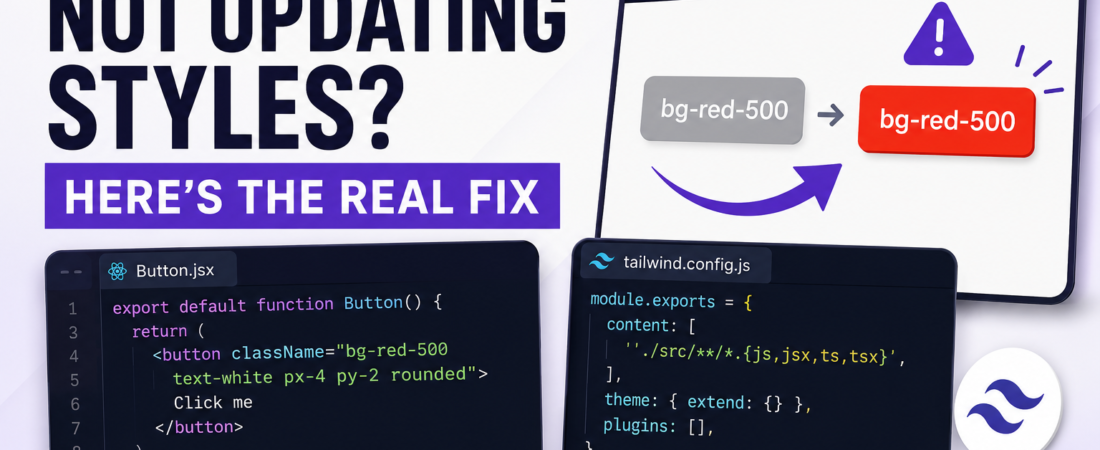
Meta Description: Changed a class and nothing happened? Here’s why Tailwind CSS won’t update styles — content config, caching, JIT issues — and how to fix each one.
I added bg-red-500 to a button, saved the file, and the button stayed exactly the same gray it had been for the last hour. I checked for typos. None. I restarted the dev server. Nothing. I was about thirty seconds from filing a bug report against Tailwind itself before I found the actual problem: the component I was editing lived in a folder that wasn’t listed in my content array, so Tailwind’s scanner had never even looked at that file.
This is, in my experience, the single most common “Tailwind is broken” complaint — and it’s almost never actually a Tailwind bug. It’s a configuration or usage pattern that Tailwind’s JIT compiler can’t see into. Let’s walk through every cause I’ve personally run into, roughly in order of how often I see each one.
How Tailwind Actually Generates Your CSS (Why This Matters)
Since Tailwind v3, the framework uses a Just-In-Time (JIT) engine that scans your source files for class names and generates only the CSS that’s actually used. This is why Tailwind builds are so small compared to shipping the entire utility library — but it also means Tailwind is entirely dependent on being able to find your class names as literal strings in your files.
That single fact explains almost every “Tailwind isn’t updating” bug that exists.
Cause 1: Your content Config Doesn’t Include the File You’re Editing
This was my thirty-second-away-from-filing-a-bug moment. If the file you’re working in isn’t matched by the content glob patterns in tailwind.config.js, Tailwind never scans it — meaning any class you add there simply doesn’t exist as far as the build is concerned.
// tailwind.config.js — the bug
module.exports = {
  content: [
    './src/pages/**/*.{js,jsx,ts,tsx}',
    './src/components/**/*.{js,jsx,ts,tsx}',
    // Missing: a "features" or "layouts" folder that actually exists in the project
  ],
  theme: { extend: {} },
  plugins: [],
};
The fix — audit your actual folder structure against the config:
// tailwind.config.js — fixed
module.exports = {
  content: [
    './src/**/*.{js,jsx,ts,tsx,mdx}', // broader glob catches everything under src
  ],
  theme: { extend: {} },
  plugins: [],
};
I generally recommend starting with a broad glob like ./src/**/*.{js,jsx,ts,tsx} rather than trying to enumerate every folder individually. It’s a little less “precise,” but it eliminates an entire category of “I added a new folder and forgot to update the config” bugs. You can narrow it later if build times become a genuine concern on a very large codebase.
Framework-Specific Content Paths
Different frameworks structure files differently, and I’ve seen this bite people specifically during a framework migration:
| Framework | Typical content Path |
|---|---|
| Next.js (App Router) | ./app/**/*.{js,ts,jsx,tsx,mdx} |
| Next.js (Pages Router) | ./pages/**/*.{js,ts,jsx,tsx}, ./components/**/*.{js,ts,jsx,tsx} |
| Vite + React | ./index.html, ./src/**/*.{js,ts,jsx,tsx} |
| SvelteKit | ./src/**/*.{html,js,svelte,ts} |
| Vue/Nuxt | ./components/**/*.{vue,js}, ./pages/**/*.vue, ./app.vue |
Missing ./index.html in a Vite project is a specific one worth calling out — if you have Tailwind classes directly in your root HTML file and it’s not in the content array, those won’t generate either.
Cause 2: Dynamically Constructed Class Names
This is the one that trips up developers who understand JIT conceptually but still get bitten by it, because the code looks like it should work.
// WRONG — Tailwind can't statically detect this
function StatusBadge({ status }) {
  const color = status === 'active' ? 'green' : 'red';
  return <span className={`bg-${color}-500 text-white`}>{status}</span>;
}
Tailwind’s scanner works by looking for complete, literal class name strings in your source files. It doesn’t execute your JavaScript — it can’t know that color might be "green" or "red" at runtime. It sees the literal text bg-${color}-500, which isn’t a real class name, and generates nothing for it.
The fix — use complete class strings, even in conditionals:
// CORRECT — full class names exist literally in the source
function StatusBadge({ status }) {
  const colorClasses = status === 'active'
    ? 'bg-green-500 text-white'
    : 'bg-red-500 text-white';
  return <span className={colorClasses}>{status}</span>;
}
Or, for a larger set of variants, a lookup object keeps this maintainable:
const statusStyles = {
  active: 'bg-green-500 text-white',
  inactive: 'bg-red-500 text-white',
  pending: 'bg-yellow-500 text-black',
};

function StatusBadge({ status }) {
  return <span className={statusStyles[status]}>{status}</span>;
}
I learned this one the hard way on a dashboard with dynamically colored tags — about fifteen tag colors, all built with template literals, none of them rendering the intended color in production, all silently falling back to no styling at all. Rewriting it as a lookup object fixed every instance at once and, as a bonus, made the mapping between status and color much easier to read six months later.
Cause 3: Stale Cache Serving an Old Build
Especially in frameworks with aggressive dev-server caching, you can genuinely fix your config or your class names and still see the old, broken result — because you’re looking at a cached build.
Common places this hides:
# Next.js
rm -rf .next

# Vite
rm -rf node_modules/.vite

# General node_modules cache weirdness
rm -rf node_modules/.cache
After clearing the relevant cache, restart the dev server. I’ve had this happen specifically after editing tailwind.config.js itself — some setups don’t automatically pick up config file changes without a full restart, as opposed to a hot-reload, because the config is read once at build startup rather than watched continuously depending on your tooling version.
Cause 4: Tailwind Directives Missing or Misplaced in Your CSS
If your build pipeline seems to be running fine but no Tailwind styles are showing up at all (not just one class — everything), check your base CSS file for the required directives.
/* globals.css or index.css */
@tailwind base;
@tailwind components;
@tailwind utilities;
If this file isn’t actually imported in your app’s entry point, or if it’s imported after other CSS that overrides it with higher specificity, you’ll see partial or total style failures that look like a Tailwind bug but are really an import-order problem.
For Tailwind v4 projects, the setup is different — it uses a single CSS import rather than the three directives:
/* Tailwind v4 */
@import "tailwindcss";
Mixing v3-style directives into a v4 project (or vice versa) is a version-mismatch mistake I’ve seen more than once after a Tailwind upgrade that wasn’t fully completed.
Cause 5: A Class Is Being Overridden, Not Missing
Sometimes Tailwind is generating the CSS correctly, but another rule with higher specificity or later source order is winning. This isn’t a Tailwind bug at all — it’s plain CSS cascade behavior — but it presents identically to “Tailwind isn’t updating.”
How to tell the difference: open DevTools, inspect the element, and check whether the Tailwind class is listed in the Styles panel at all.
- Not listed at all → Tailwind never generated it (config or dynamic class issue — see Causes 1–2)
- Listed but crossed out → it’s being overridden by something else (specificity or source order issue)
<!-- Common culprit: a global CSS reset or component library loaded after Tailwind -->
<button class="bg-blue-500">Click me</button>
/* If this loads after Tailwind's utilities, it wins regardless of what your className says */
button {
  background-color: gray;
}
Fix: ensure Tailwind’s stylesheet loads after any base resets or third-party component library CSS, or use Tailwind’s important strategy sparingly for genuinely unavoidable conflicts:
// tailwind.config.js — use sparingly, not as a default habit
module.exports = {
  important: true,
  // ...
};
I’d treat important: true as a last resort rather than a fix — it’s a blunt instrument that can create its own specificity headaches later. Reordering your CSS imports so Tailwind loads last is almost always the cleaner solution.
Cause 6: Editing a File That Isn’t Actually Being Rendered
This sounds almost too obvious to mention, but I’ve genuinely burned twenty minutes on this exact mistake: editing a component file that looked correct, while the app was actually rendering a different file with a similar name — a leftover duplicate from a refactor, or an old version still imported somewhere upstream.
Quick sanity check: add an obviously wrong, impossible-to-miss class temporarily (bg-pink-500 with no other pink anywhere nearby) and confirm it shows up. If it doesn’t, you’re not editing the file you think you’re editing — the problem isn’t Tailwind at all.
Debugging Checklist: Step by Step
- Confirm the file is covered by
contentintailwind.config.js— check the actual glob pattern against the actual file path. - Check for dynamically constructed class names — search for template literals building class strings (
`bg-${var}-500`). - Clear the framework’s dev cache (
.next,node_modules/.vite, etc.) and restart the dev server. - Verify Tailwind’s directives or v4 import exist and load in the right order in your base CSS file.
- Inspect the element in DevTools — is the class missing entirely, or present but crossed out (overridden)?
- Sanity-check you’re editing the file that’s actually rendering with an obvious, temporary test class.
- Restart the dev server after any
tailwind.config.jschange — config changes aren’t always hot-reloaded.
Tailwind v3 vs. v4: What Changed for This Kind of Bug
| Aspect | Tailwind v3 | Tailwind v4 |
|---|---|---|
| CSS setup | @tailwind base/components/utilities directives | Single @import "tailwindcss" |
| Config file | tailwind.config.js required | CSS-first config, JS config optional |
| Content detection | Explicit content array required | Automatic content detection in most setups |
| Common “not updating” cause | Missing path in content array | Mixing v3 directive syntax into a v4 project |
If you’ve recently upgraded to v4 and styles stopped updating, check your CSS import syntax first — it’s the most common cause I’ve seen specifically tied to that migration.
Best Practices to Avoid This Going Forward
| Practice | Why It Helps |
|---|---|
Use a broad content glob (./src/**/*.{js,jsx,ts,tsx}) | Prevents “forgot to add a new folder” bugs |
| Never build class names with template literals | JIT can only detect literal, complete class strings |
| Use lookup objects for variant-based styling | Keeps every possible class name statically visible to Tailwind |
| Load Tailwind’s stylesheet after resets/component libraries | Avoids specificity conflicts that look like Tailwind bugs |
| Restart the dev server after config changes | Config isn’t always hot-reloaded like component files |
| Use DevTools to distinguish “missing” vs. “overridden” | These have completely different fixes |
Common Mistakes I See Repeatedly
- Narrow, hand-maintained
contentglobs that quietly go stale as the project grows. - Building class names dynamically with template literals instead of lookup objects.
- Assuming a styling bug is a Tailwind bug before checking DevTools to see if the class exists at all.
- Not restarting the dev server after editing
tailwind.config.js. - Mixing v3 and v4 syntax mid-migration and not realizing the CSS setup itself is the mismatch.
FAQ
Why does adding a new Tailwind class do nothing in my project? The most common cause is that the file you’re editing isn’t matched by the content array in tailwind.config.js. Check the actual glob pattern against the actual file path — a narrow or outdated content config is the single most frequent cause of this.
Can I use template literals to build Tailwind class names dynamically? Not reliably. Tailwind’s JIT engine scans source files for complete, literal class name strings — it can’t execute your JavaScript to resolve a template literal like `bg-${color}-500`. Use a lookup object or write out full class names in conditionals instead.
Why did my Tailwind styles stop working after I edited tailwind.config.js? Some dev server setups don’t automatically hot-reload changes to the config file itself, unlike component file edits. Restart the dev server after any config change to be safe.
How do I tell if a Tailwind class isn’t generating versus being overridden by other CSS? Open DevTools and inspect the element. If the class isn’t listed in the Styles panel at all, Tailwind never generated it — check your content config or for dynamic class names. If it’s listed but crossed out, it’s being overridden by a more specific or later-loaded rule.
Does clearing the cache actually fix Tailwind not updating? Sometimes, yes — especially in frameworks with aggressive dev-server caching like Next.js or Vite. Clearing .next or node_modules/.vite and restarting the dev server resolves cases where a stale build is being served despite correct source changes.
What’s different about Tailwind CSS v4 that might cause this issue after upgrading? Tailwind v4 replaced the @tailwind base/components/utilities directives with a single @import "tailwindcss" statement, and shifted toward CSS-first configuration. Leaving old v3-style directives in place after upgrading is a common cause of styles failing to generate.
Final Thoughts
Almost every “Tailwind isn’t updating” bug traces back to the JIT engine simply not being able to see the class name it needs to generate — whether that’s because the file isn’t in your content config, the class is being built dynamically at runtime, or a cached build is masking your actual changes. None of these are Tailwind bugs in the traditional sense; they’re all consequences of how the JIT scanner works, once you know what to look for.
If this saved you some debugging time, I’ve got more frontend troubleshooting guides on SpiritCode — including a deep dive on why React components re-render twice in development mode, which trips people up for similarly non-obvious reasons.