
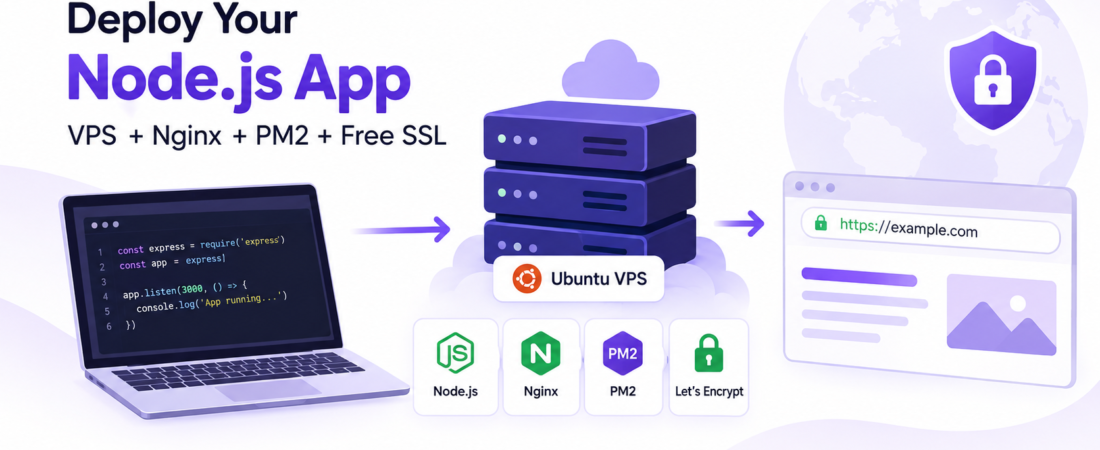
I moved a Node.js app from my laptop to a low-cost Ubuntu VPS. Here’s exactly how I set up Nginx, PM2, and a free Let’s Encrypt SSL certificate.
I had a small Node.js app running on localhost:3000 and needed it online at a real domain, with HTTPS, for a US client. Managed platforms are convenient, but I wanted full control and a low monthly bill, so I used a basic Ubuntu VPS.
This is the exact setup I used. It takes about 20 minutes once you know the steps.
What you need
- An Ubuntu 22.04 or 24.04 VPS (providers like DigitalOcean, Vultr, and Hetzner all offer entry-level plans for a few dollars a month; check current pricing)
- A domain name with an A record pointing to your server’s IP
- A Node.js app that listens on a port (I use 3000)
Step 1: Create a non-root user and update the server
ssh root@YOUR_SERVER_IP
adduser deploy
usermod -aG sudo deploy
apt update && apt upgrade -y
Then log in as deploy from now on.
Step 2: Install Node.js, Nginx, and PM2
curl -fsSL https://deb.nodesource.com/setup_lts.x | sudo -E bash -
sudo apt install -y nodejs nginx
sudo npm install -g pm2
Step 3: Put your app on the server and start it with PM2
cd /home/deploy
git clone https://github.com/YOUR_USER/YOUR_REPO.git app
cd app
npm install --omit=dev
pm2 start server.js --name myapp
Make PM2 restart the app after a reboot:
pm2 startup
PM2 prints a command starting with sudo env PATH=.... Copy and run that exact command, then save the process list:
pm2 save
Step 4: Configure Nginx as a reverse proxy
sudo nano /etc/nginx/sites-available/myapp
server {
    listen 80;
    server_name example.com www.example.com;

    location / {
        proxy_pass http://127.0.0.1:3000;
        proxy_http_version 1.1;
        proxy_set_header Host $host;
        proxy_set_header X-Real-IP $remote_addr;
        proxy_set_header X-Forwarded-For $proxy_add_x_forwarded_for;
        proxy_set_header X-Forwarded-Proto $scheme;
        proxy_set_header Upgrade $http_upgrade;
        proxy_set_header Connection "upgrade";
    }
}
Enable it and reload:
sudo ln -s /etc/nginx/sites-available/myapp /etc/nginx/sites-enabled/
sudo nginx -t
sudo systemctl reload nginx
nginx -t checks your syntax before you reload, which saved me more than once.
Step 5: Open the firewall
sudo ufw allow OpenSSH
sudo ufw allow 'Nginx Full'
sudo ufw enable
Allow OpenSSH before enabling the firewall, or you can lock yourself out.
Step 6: Get a free SSL certificate
sudo apt install -y certbot python3-certbot-nginx
sudo certbot --nginx -d example.com -d www.example.com
Certbot edits your Nginx config and sets up HTTPS. Check that automatic renewal works:
sudo certbot renew --dry-run
Errors I ran into
502 Bad Gateway Nginx couldn’t reach the app. Check that it’s running with pm2 status and read the logs with pm2 logs myapp. Also confirm the port in proxy_pass matches the one your app uses.
Certbot fails with a challenge error The domain’s A record wasn’t pointing to the server yet, or DNS hadn’t propagated. Run dig +short example.com and compare it with your server IP.
App works until I log out I had started it with node server.js instead of PM2. Use PM2 so it keeps running.
pm2 command not found after reboot I skipped pm2 startup or pm2 save. Run both again.
Quick checklist
- A record points to the server
- App runs under PM2 and survives reboot
nginx -tpasses- Firewall allows SSH and Nginx
- HTTPS works and
certbot renew --dry-runsucceeds
FAQ
Can I use Docker instead of PM2? Yes. Nginx stays the same; you just point proxy_pass to the container’s port.
How do I deploy updates? git pull, npm install --omit=dev, then pm2 restart myapp.
Is a small VPS enough? For a small app with low traffic, usually yes. Monitor memory with pm2 monit and upgrade if you need to.