
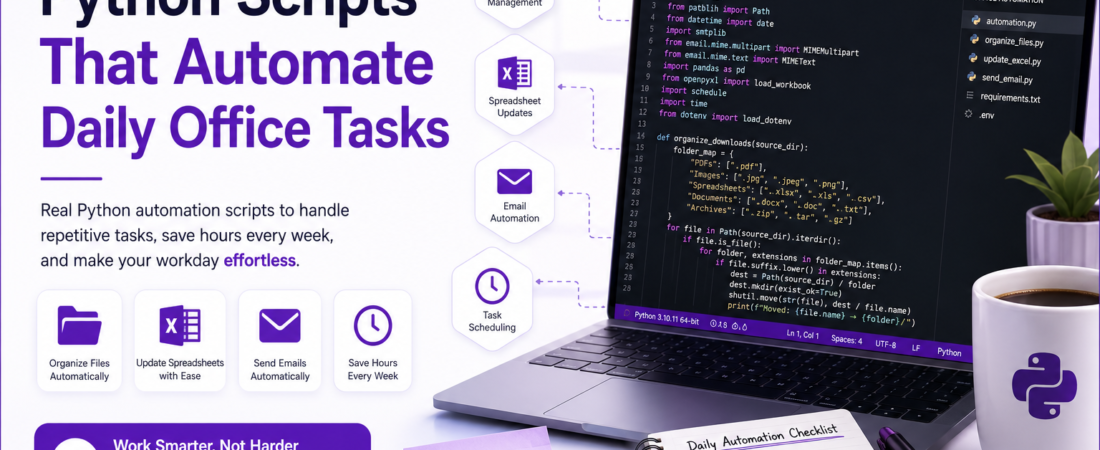
Meta description: I automated my most repetitive office tasks with Python — here’s exactly how I did it, with real scripts, gotchas I hit, and the time I saved every week.
Last updated: June 2026
Introduction
Eighteen months ago, I was spending roughly an hour every morning doing the same things: pulling reports from a shared drive, renaming files with the current date, sending status emails, and updating a spreadsheet with data copied from three different sources. My manager thought I was “thorough.” I knew I was just slow.
The fix took me a weekend. I wrote a handful of Python automation scripts that now handle all of that before I pour my second cup of coffee. None of the scripts were complicated — but knowing which libraries to use, how to structure them for reliability, and where things typically break made all the difference.
This article shares exactly what I built, how I built it, and the mistakes I made so you don’t have to repeat them.
TL;DR
- Python can automate file management, email sending, spreadsheet updates, and web scraping with libraries most developers already know.
- The biggest time savings come from automating daily repetitive tasks — even 10-minute tasks add up to hours per week.
- Scheduling matters as much as the script itself: I’ll show you how to run these automatically with
cron(Linux/macOS) and Task Scheduler (Windows).
Why Python Is the Right Tool for Office Automation
Python office automation isn’t a new idea, but it remains underused by developers who associate Python with data science or backend APIs. The reality is that Python’s standard library and a small set of third-party packages give you everything you need to control files, send emails, read and write Excel sheets, and interact with web services — without any complex infrastructure.
The scripts I’m sharing run on Python 3.10+. They use no cloud services, no paid APIs, and no dependencies that aren’t available with a single pip install. That matters when you’re working inside a corporate network with restricted outbound access.
[INTERNAL LINK: related article]
Prerequisites
- Python 3.10 or later (
python --versionto check) - A virtual environment — I use
venv:
python -m venv office-env
source office-env/bin/activate  # macOS/Linux
office-env\Scripts\activate     # Windows
- Install the libraries used in this article:
pip install openpyxl pandas smtplib schedule requests python-dotenv
Security Note: Never hardcode email passwords or API keys in your scripts. Use a
.envfile and load it withpython-dotenv. Add.envto your.gitignoreimmediately.
Python Scripts That Automate Real Office Work
Step 1: Automate File Organization
The most universally useful script I have watches a folder — typically my Downloads directory — and moves files into subfolders based on file type, automatically.
import os
import shutil
from pathlib import Path

SOURCE_DIR = Path.home() / "Downloads"

FOLDER_MAP = {
    "PDFs": [".pdf"],
    "Images": [".jpg", ".jpeg", ".png", ".gif", ".webp"],
    "Spreadsheets": [".xlsx", ".xls", ".csv"],
    "Documents": [".docx", ".doc", ".txt"],
    "Archives": [".zip", ".tar", ".gz"],
}

def organize_downloads():
    for file in SOURCE_DIR.iterdir():
        if file.is_file():
            for folder, extensions in FOLDER_MAP.items():
                if file.suffix.lower() in extensions:
                    dest = SOURCE_DIR / folder
                    dest.mkdir(exist_ok=True)
                    shutil.move(str(file), dest / file.name)
                    print(f"Moved: {file.name} → {folder}/")
                    break

if __name__ == "__main__":
    organize_downloads()
Gotcha I hit: On Windows, shutil.move() throws a PermissionError if the file is still being written (e.g., a download in progress). I added a try/except PermissionError block with a continue to skip locked files gracefully.
Step 2: Automate Spreadsheet Updates with openpyxl
Every week I had to paste new data rows into a master Excel tracker. This script reads a CSV export and appends it to an existing .xlsx file — no Excel required.
import csv
from openpyxl import load_workbook
from datetime import date

WORKBOOK_PATH = "weekly_tracker.xlsx"
CSV_INPUT = "new_data.csv"

def append_csv_to_excel(csv_path: str, workbook_path: str):
    wb = load_workbook(workbook_path)
    ws = wb.active

    with open(csv_path, newline="", encoding="utf-8") as f:
        reader = csv.reader(f)
        next(reader)  # Skip header row
        for row in reader:
            ws.append([date.today().isoformat()] + row)

    wb.save(workbook_path)
    print(f"Appended rows to {workbook_path}")

if __name__ == "__main__":
    append_csv_to_excel(CSV_INPUT, WORKBOOK_PATH)
Trade-off: openpyxl doesn’t support .xls (old Excel format). If your files are .xls, use xlrd to read and openpyxl to write — or ask IT to export as .xlsx.
[SOURCE: https://openpyxl.readthedocs.io/en/stable/]
Step 3: Send Automated Status Emails with smtplib
I replaced a recurring manual email with this script. It pulls data from a file, builds an HTML message, and sends it via Gmail’s SMTP server.
import smtplib
from email.mime.multipart import MIMEMultipart
from email.mime.text import MIMEText
from dotenv import load_dotenv
import os

load_dotenv()

SMTP_SERVER = "smtp.gmail.com"
SMTP_PORT = 587
SENDER = os.getenv("EMAIL_ADDRESS")
PASSWORD = os.getenv("EMAIL_PASSWORD")

def send_status_email(recipient: str, subject: str, body_html: str):
    msg = MIMEMultipart("alternative")
    msg["Subject"] = subject
    msg["From"] = SENDER
    msg["To"] = recipient

    part = MIMEText(body_html, "html")
    msg.attach(part)

    with smtplib.SMTP(SMTP_SERVER, SMTP_PORT) as server:
        server.ehlo()
        server.starttls()
        server.login(SENDER, PASSWORD)
        server.sendmail(SENDER, recipient, msg.as_string())
        print(f"Email sent to {recipient}")

if __name__ == "__main__":
    send_status_email(
        recipient="manager@company.com",
        subject="Weekly Status — Automated",
        body_html="<h2>All systems green ✅</h2><p>Report attached.</p>"
    )
Real error I encountered: Gmail blocked my first attempt with SMTPAuthenticationError: 535. The fix: Gmail requires an App Password, not your regular account password, when 2FA is enabled. Generate one at myaccount.google.com/apppasswords and put it in your .env file.
Security Note: If you’re on a corporate email system, check with IT before sending automated emails. Some organizations have SMTP relay restrictions or require service accounts for automation.
Step 4: Automate Web Data Collection with requests and pandas
I needed daily exchange rates from a public API to update a budget spreadsheet. This script fetches JSON data, converts it to a DataFrame, and saves it as a dated CSV.
import requests
import pandas as pd
from datetime import date
from dotenv import load_dotenv
import os

load_dotenv()

API_URL = "https://api.exchangerate.host/latest"
BASE_CURRENCY = "USD"
CURRENCIES = ["EUR", "GBP", "CAD", "JPY", "BRL"]

def fetch_and_save_rates():
    response = requests.get(
        API_URL,
        params={"base": BASE_CURRENCY, "symbols": ",".join(CURRENCIES)},
        timeout=10
    )
    response.raise_for_status()

    data = response.json()
    rates = data.get("rates", {})

    df = pd.DataFrame([
        {"date": date.today().isoformat(), "currency": k, "rate": v}
        for k, v in rates.items()
    ])

    filename = f"rates_{date.today().isoformat()}.csv"
    df.to_csv(filename, index=False)
    print(f"Saved: {filename}")

if __name__ == "__main__":
    fetch_and_save_rates()
Gotcha: Always set timeout=10 on requests.get(). Without it, if the API hangs, your script hangs indefinitely — which breaks scheduled automation silently.
[SOURCE: https://docs.python-requests.org/en/latest/user/quickstart/]
Step 5: Schedule Everything with cron or Task Scheduler
Writing the scripts is only half the job. Making them run automatically is what turns a script into real automation.
On Linux/macOS — using cron:
# Open crontab
crontab -e

# Run file organizer every day at 8:00 AM
0 8 * * * /path/to/office-env/bin/python /path/to/organize_downloads.py

# Send weekly status email every Monday at 9:00 AM
0 9 * * 1 /path/to/office-env/bin/python /path/to/send_email.py
On Windows — using Task Scheduler:
schtasks /create /tn "WeeklyStatusEmail" /tr "C:\office-env\Scripts\python.exe C:\scripts\send_email.py" /sc weekly /d MON /st 09:00
Pro Tip: Always use the full path to your virtual environment’s Python binary in cron/Task Scheduler — not the system Python. This ensures your installed packages are available when the task runs.
Real-World Tips I Use in Production
Log everything. Add a simple logging block to every script:
import logging
logging.basicConfig(
    filename="automation.log",
    level=logging.INFO,
    format="%(asctime)s — %(levelname)s — %(message)s"
)
When something breaks at 8 AM while you’re asleep, logs tell you exactly what happened.
Wrap scripts in try/except with email alerts. If a critical script fails silently, you won’t know until someone complains. I have a lightweight error-notification wrapper that emails me on any unhandled exception.
Keep scripts single-purpose. A script that organizes files, sends an email, and updates a spreadsheet all in one is hard to debug and harder to maintain. One script, one job.
Common Errors and How I Fixed Them
ModuleNotFoundError: No module named 'openpyxl' — You’re running the system Python, not your virtual environment’s Python. Activate the venv first with source office-env/bin/activate.
PermissionError: [Errno 13] when moving files on Windows — The file is open in another application or still being written. Wrap shutil.move() in a try/except and retry after 2 seconds using time.sleep(2).
SMTPAuthenticationError with Gmail — You’re using your account password instead of an App Password. See Step 3 above for the fix.
Script runs manually but fails in cron — Environment variables from your .env file may not load in cron’s minimal environment. Use absolute paths for everything and explicitly load the .env file with load_dotenv("/absolute/path/to/.env").
FAQ
Q: What are the best Python libraries for automating office tasks in 2025? A: My core stack is openpyxl for Excel files, pandas for data manipulation, smtplib for email, requests for APIs, and schedule or cron for scheduling. Together they cover 90% of real office automation needs.
Q: Can Python automation scripts run on Windows without admin privileges? A: Yes. All scripts in this article use standard libraries and write to user-accessible directories. Task Scheduler tasks can be created and run without admin rights as long as you set them to “Run only when user is logged on.”
Q: How do I automate Excel files without installing Microsoft Excel? A: Use openpyxl for reading and writing .xlsx files, or pandas with openpyxl as the engine. Neither requires Excel to be installed. For .xls files (older format), use the xlrd library.
Q: Is it safe to store email passwords in Python scripts? A: Never store passwords directly in scripts. Use a .env file with python-dotenv, add .env to .gitignore, and use app-specific passwords (not your main account password) for services like Gmail. For production environments, consider a secrets manager.
Q: How do I run a Python script automatically every day on a Mac? A: Use cron — open Terminal, run crontab -e, and add a line like 0 8 * * * /path/to/venv/bin/python /path/to/script.py. Use the full path to your virtual environment’s Python binary, not /usr/bin/python3.
Conclusion
Office automation with Python doesn’t require a computer science degree or a complex infrastructure setup. The five scripts I shared here replaced tasks that were consuming over an hour of my day — and they’ve been running reliably for more than a year with minimal maintenance.
Start with the task you hate most. Build one script, schedule it, log it, and watch it run. Once you see it work, you’ll find five more things to automate.
About the Author
I’m a software engineer and automation enthusiast with 8 years of experience across backend development, DevOps, and data engineering. Python has been my go-to scripting language for the past six years, and I’ve used it to automate everything from file management to CI/CD pipelines. I write to share the practical, production-tested techniques that actually make a difference in daily developer work.