Ditch the Legacy VPN: My Guide to a Secure, Fast Remote Dev Setup with Tailscale
I’ve spent a non-trivial portion of my career fighting with legacy VPNs. You know the drill: clunky clients that drop connection when your laptop sleeps, complex firewall rules that feel like playing Jenga, and the constant anxiety of exposing your entire internal network just so you can SSH into a single development box. It’s a mess, it’s slow, and honestly, it’s a massive security hole.
Lately, I’ve shifted my entire workflow to a zero-trust philosophy. I want my remote environment to feel like it’s sitting right next to me, without the overhead of a traditional perimeter-based network. After a lot of trial and error, I’ve landed on the ultimate combo: Tailscale and VS Code.
Here is how I set up my “gold standard” remote development environment.
The Stack: Why This Combo?
If you haven’t used it yet, Tailscale is essentially private WireGuard made easy. It creates a mesh network (or a tailnet) where every device talks directly to the other, encrypted end-to-end. No port forwarding, no static IPs, and no “gateway” to bottleneck your traffic.
Pair that with the VS Code Remote Development extension pack, and you get a local-like experience on a headless server. You’re running the UI on your laptop, but the language server, terminal, and debugger are running on the remote beefy machine.
Step 1: Setting Up the Tailnet
First, we need to get both your local machine and your remote server on the same private network.
On your Remote Server (Linux/Headless):
Most remote dev boxes are Linux. Installing Tailscale is a one-liner:
Bash
curl -fsSL https://pkgs.tailscale.com/stable/ubuntu/jammy.noarch.gpg | sudo tee /usr/share/keyrings/tailscale-archive-keyring.gpg >/dev/null
curl -fsSL https://pkgs.tailscale.com/stable/ubuntu/jammy.tailscale-repo.list | sudo tee /etc/apt/sources.list.d/tailscale.list

sudo apt-get update && sudo apt-get install tailscale
sudo tailscale up
Once you run tailscale up, it will give you a login URL. Authenticate via your browser, and boom—your server has a private IP (e.g., 100.x.y.z) that only you can see.
On your Local Laptop:
Just download the Tailscale app for macOS or Windows, log in with the same account, and your laptop is now part of the same mesh network.
Step 2: The VS Code Connection
Now, let’s make the magic happen. Open VS Code and install the Remote – SSH extension.
Instead of messing with the public IP of your server, we use the Tailscale IP or, even better, the MagicDNS name.
- Press
F1and typeRemote-SSH: Connect to Host... - Enter
user@your-server-name(Tailscale provides these names automatically). - VS Code will now install its small server-side component on the remote machine.
My Hard-Learned Lesson: Tailscale SSH is a Game Changer
Here is an EEAT tip from the trenches: Stop manually managing SSH keys.
I used to spend way too much time copying id_rsa.pub across three different remote machines and a home lab. If I lost a laptop, I had to rotate keys everywhere. It was a nightmare.
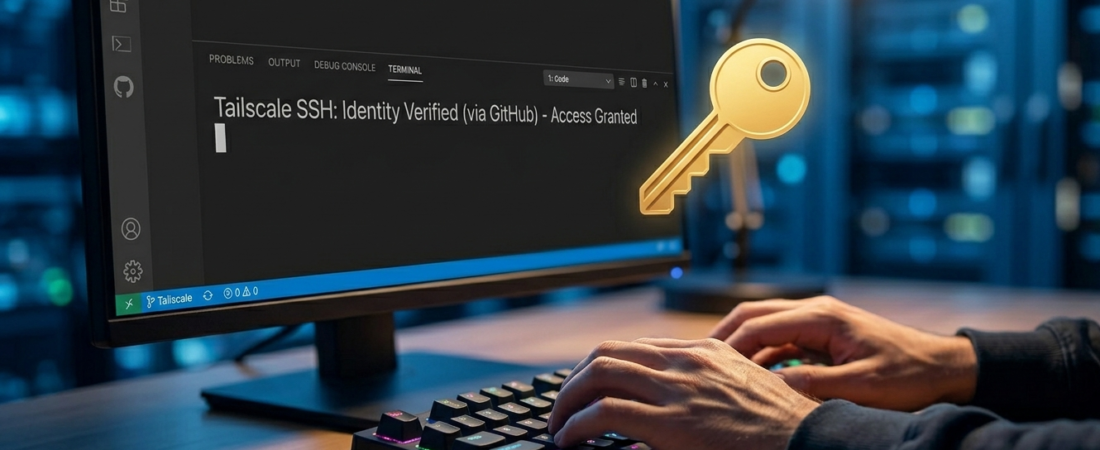
Now, I use Tailscale SSH. It allows Tailscale to handle the authentication based on your identity provider (Google, GitHub, Microsoft). If you are logged into Tailscale on your laptop, you are automatically authorized to SSH into your server.
To enable it on your server, just run:
Bash
sudo tailscale up --ssh
No more authorized_keys mess. It “just works” and follows the principle of least privilege.
Security Without the DX Tax
The best part of this setup is that we aren’t sacrificing Developer Experience (DX) for security. Since we are using a zero-trust mesh:
- We don’t need to open port 22 to the public internet.
- Traffic is encrypted via WireGuard.
- We can use MagicDNS, so I can just SSH into
dev-boxinstead of remembering an IP.
Quick Config Checklist
Ready to build yours? Here’s your map:
- [ ] Create a Tailscale account and log in on both devices.
- [ ] Enable MagicDNS in the Tailscale admin console for easy hostnames.
- [ ] Install VS Code Remote Development Pack on your local machine.
- [ ] Run
tailscale up --sshon the remote server to ditch manual key management. - [ ] Verify connection by pinging the remote tailscale IP from your local terminal.
This setup changed the way I work. Whether I’m at a coffee shop or traveling, my dev environment is one click away, secure by default, and incredibly fast.