Meta Description: Stop copy-pasting deploy status into Slack by hand. Here’s how I built an n8n workflow that automates alerts for deploys, errors, and PRs.
For about a year, our team’s deploy notifications were a person. Literally — whoever ran the deploy was responsible for remembering to type “deployed v2.3.1 to prod ✅” in the #deploys channel. Half the time it got forgotten. The other half, it happened but nobody mentioned whether the deploy actually succeeded, so we’d find out it failed twenty minutes later from a confused support ticket.
I automated it with n8n over a weekend, and in my experience it’s one of the highest-leverage things a small dev team can set up. This isn’t a theoretical walkthrough — this is close to the exact workflow I still have running, adjusted here to keep it generic so you can adapt it to your own stack.
Why n8n Instead of Zapier or a Custom Script
I get asked this a lot, so let’s get it out of the way before the tutorial.
| Tool | Cost Model | Self-Hosting | Best For |
|---|---|---|---|
| n8n | Free self-hosted, or paid cloud | Yes (Docker/npm) | Teams comfortable with light infra, want full control |
| Zapier | Per-task pricing, scales fast | No | Non-technical teams, quick setups, no infra tolerance |
| Custom script + cron | Free (your time) | Yes | Very simple, single-purpose alerts |
| GitHub Actions only | Free (within limits) | No | Alerts tied strictly to GitHub events |
I switched from a patchwork of GitHub Actions steps and a couple of Zapier zaps to n8n mainly because our alert logic grew past “if X happens, post to Slack” into “if X happens AND it’s not a known flaky test AND it’s during business hours, post to Slack, otherwise log it and stay quiet.” That kind of branching logic gets expensive fast on Zapier’s per-task billing, and it’s genuinely painful to maintain as a bash script glued to cron.
n8n isn’t free of tradeoffs — self-hosting means you own the uptime of your automation tool, which is a little ironic when the automation tool’s job is to tell you when something else is down. I run it on a small VPS with a basic uptime monitor pointed at it, and that’s been enough.
What You’ll Need Before Starting
- An n8n instance (self-hosted via Docker, or n8n Cloud)
- A Slack workspace where you have permission to create an app
- Whatever you’re alerting on: a GitHub repo, a CI pipeline, an error tracker (Sentry, etc.), or a custom webhook from your own app
Getting n8n Running (Docker, Self-Hosted)
docker volume create n8n_data
docker run -d --name n8n \
  -p 5678:5678 \
  -v n8n_data:/home/node/.n8n \
  n8nio/n8n
Once it’s up, visit http://localhost:5678 (or your server’s address) and create your admin account. If you’re exposing this beyond localhost, put it behind a reverse proxy with HTTPS — this instance will hold credentials for your Slack workspace and possibly your CI system, so treat it like any other piece of infrastructure with secrets.
Step 1: Create a Slack App and Get a Webhook or Bot Token
You have two paths here, and I’d recommend the bot token approach even though the webhook is faster to set up.
Incoming Webhook (simpler, more limited):
- Go to
api.slack.com/apps→ Create New App → From Scratch - Name it (I called mine “Deploy Bot”) and select your workspace
- Under “Incoming Webhooks,” toggle it on and click “Add New Webhook to Workspace”
- Choose the channel and copy the webhook URL
Bot Token (more flexible — lets you post to multiple channels, react to messages, etc.):
- Same app creation flow, but under “OAuth & Permissions,” add the
chat:writescope - Install the app to your workspace
- Copy the “Bot User OAuth Token” (starts with
xoxb-) - Invite the bot to your target channel:
/invite @YourBotName
I use the bot token approach because I ended up wanting the same workflow to post to different channels depending on severity — #deploys for successes, #incidents for failures — and a single incoming webhook is locked to one channel.
Step 2: Build the Base Workflow in n8n
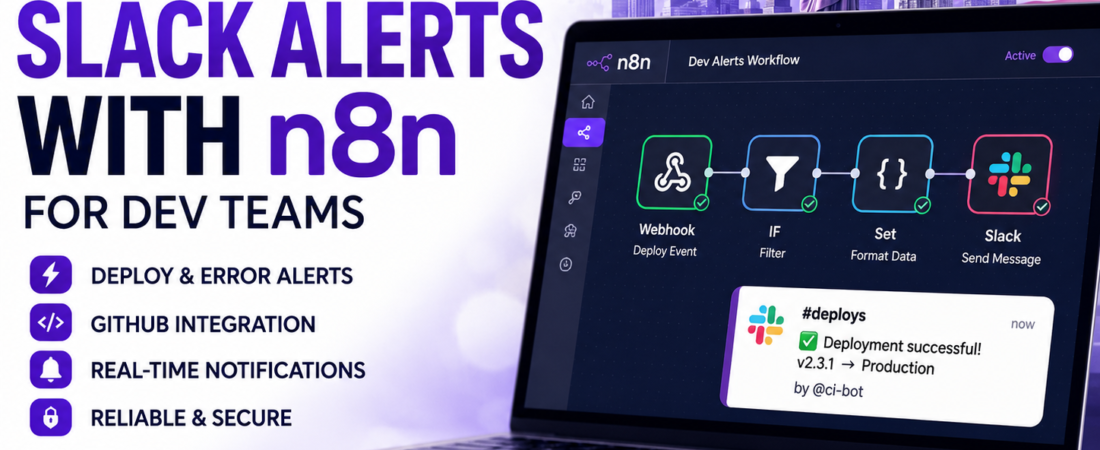
Open n8n and create a new workflow. The basic shape is always the same three-part structure, regardless of what you’re alerting on:
Trigger → Process/Filter → Slack Node
Adding the Trigger
For deploy alerts, I use a Webhook node as the trigger, which GitHub Actions (or your CI tool) calls at the end of a deploy job.
- Add a Webhook node
- Set the HTTP Method to
POST - Copy the generated webhook URL — you’ll paste this into your CI config
In your GitHub Actions workflow, add a step that calls it:
- name: Notify n8n of deploy status
  if: always()
  run: |
    curl -X POST "${{ secrets.N8N_WEBHOOK_URL }}" \
      -H "Content-Type: application/json" \
      -d '{
        "status": "${{ job.status }}",
        "repo": "${{ github.repository }}",
        "branch": "${{ github.ref_name }}",
        "actor": "${{ github.actor }}",
        "commit": "${{ github.sha }}"
      }'
The if: always() matters — I learned this the hard way after my first version only notified on success, which meant failed deploys were silent again, defeating the entire point.
Adding a Filter/Condition Node
Between the webhook and the Slack node, add an IF node to branch on deploy status:
- Condition:
{{$json["status"]}}equalssuccess→ route to success message - Else → route to failure message with a different channel and an @here mention
This is the part that a plain webhook-to-Slack setup can’t easily do — you want failures to look and feel urgent, and successes to be quiet confirmations nobody needs to react to.
Adding the Slack Node
Add an n8n Slack node after each branch:
- Choose “Send a Message” as the operation
- Select your Slack credential (paste the bot token here — n8n stores it encrypted)
- Set the channel:
#deploysfor success,#incidentsfor failure - Build the message using expressions pulled from the webhook payload:
✅ Deploy succeeded
Repo: {{$json["repo"]}}
Branch: {{$json["branch"]}}
By: {{$json["actor"]}}
Commit: {{$json["commit"]}}
For the failure branch, I add <!here> at the start and switch the emoji to 🔴, which sounds trivial but genuinely changes how fast people notice and react in a busy channel.
Step 3: Formatting Messages That Don’t Get Ignored
A wall of plain text gets skimmed and ignored. I use Slack’s Block Kit formatting through the Slack node’s “JSON” message mode for anything that matters:
{
  "blocks": [
    {
      "type": "section",
      "text": {
        "type": "mrkdwn",
        "text": "*🔴 Deploy Failed*\n*Repo:* {{$json[\"repo\"]}}\n*Branch:* {{$json[\"branch\"]}}\n*By:* {{$json[\"actor\"]}}"
      }
    },
    {
      "type": "actions",
      "elements": [
        {
          "type": "button",
          "text": { "type": "plain_text", "text": "View Logs" },
          "url": "{{$json[\"logs_url\"]}}"
        }
      ]
    }
  ]
}
Adding a direct “View Logs” button cut down on the number of times someone asked “wait, where’s the failed build?” in the thread.
Step 4: Extending It Beyond Deploys
Once the base pattern exists, adding new alert sources is mostly copy-paste-and-adjust. A few I’ve added over time:
| Alert Source | Trigger Type in n8n | Notes |
|---|---|---|
| Sentry errors | Webhook (Sentry’s built-in integration) | Filter by error frequency to avoid noise |
| Pull requests open >48h | Schedule node + GitHub node (poll) | Runs once a day, checks PR age |
| CI test flakiness | Webhook from CI | Track repeat failures on the same test |
| Server disk usage | Schedule node + HTTP Request to a metrics endpoint | Alert only above a threshold |
The schedule-based ones are worth calling out separately — not everything is event-driven. For the stale PR check, I use a Schedule Trigger node set to run every morning at 9 AM, which calls the GitHub API for open PRs and filters for ones older than 48 hours before posting a digest to #code-review.
Common Mistakes I Made (So You Don’t Have To)
- Not handling failed workflow runs in n8n itself. If your n8n instance goes down, you get silent failures on your alerting system — which is exactly the scenario alerting exists to prevent. I added an external uptime check (a separate, dead-simple cron-based ping) that’s independent of n8n entirely.
- Over-alerting. My first version posted every single CI run, pass or fail, to the main channel. It took about three days before people started muting the channel entirely. I scoped it down to failures and production deploys only.
- Hardcoding channel names instead of using variables. When we renamed
#deploysto#ship-log, I had to go through multiple workflows to update it. Now I use an n8n environment variable for channel names. - Forgetting
if: always()in CI steps. Covered above, but worth repeating — this is the single most common reason a “working” deploy alert goes silent exactly when you need it most. - Storing the Slack token in plain text inside a workflow node. Always use n8n’s built-in credential store rather than pasting tokens directly into HTTP Request nodes as headers.
n8n vs. Writing a Custom Script: When Each Makes Sense
| Factor | n8n | Custom Script |
|---|---|---|
| Setup time | Faster for multi-step logic | Faster for one trigger, one action |
| Maintainability | Visual, easier for non-primary maintainers to understand | Requires reading code to understand flow |
| Branching logic | Built-in IF/Switch nodes | Requires writing conditionals by hand |
| Infrastructure overhead | Needs its own hosted instance | Runs wherever cron already runs |
| Best fit | Multiple alert sources, evolving logic | Single, stable, rarely-changing alert |
If you genuinely only need “when X happens, post to Slack” and it will never grow more complex than that, a ten-line script triggered by cron or a GitHub Action is honestly less overhead than standing up n8n. I moved to n8n specifically because our alerting logic kept growing branches, and a dedicated tool is easier to reason about than accumulating conditionals in a bash script nobody wants to touch.
Checklist Before You Ship This
- [ ] n8n instance running and reachable (self-hosted behind HTTPS, or n8n Cloud)
- [ ] Slack app created with
chat:writescope, bot invited to target channels - [ ] Webhook node created in n8n, URL added as a CI secret (never hardcoded)
- [ ] CI step uses
if: always()so failures trigger alerts too - [ ] IF node branches success vs. failure into separate messages/channels
- [ ] Slack messages use Block Kit for scannability, not plain text walls
- [ ] External uptime check monitors the n8n instance itself
- [ ] Channel names stored as variables, not hardcoded per node
- [ ] Alert volume reviewed after a week — muted channels mean you’re over-alerting
FAQ
Is n8n free to use? Yes, if self-hosted — n8n’s fair-code license allows self-hosting for free. n8n also offers a paid cloud version if you’d rather not manage the infrastructure yourself.
Do I need to know how to code to use n8n? No for basic workflows — trigger, filter, and action nodes cover most alerting use cases without writing code. Expressions (small snippets referencing data from previous nodes) are the closest thing to “code” you’ll typically touch.
Can n8n replace GitHub Actions entirely? Not really, and I wouldn’t recommend trying. GitHub Actions is best kept for CI/CD itself (build, test, deploy). n8n shines at the layer above that — reacting to events, branching logic, and routing notifications across multiple tools.
What’s the difference between a Slack incoming webhook and a bot token in n8n? An incoming webhook posts to one fixed channel and supports basic messages. A bot token (OAuth) lets the same n8n workflow post to multiple channels, react to messages, and use more of Slack’s API — worth the slightly longer setup for anything beyond a single-channel alert.
How do I stop my Slack channel from getting flooded with alerts? Filter aggressively before the Slack node — use IF/Switch nodes to only alert on failures, thresholds crossed, or specific event types rather than every single event. Route lower-priority events to a log or digest instead of a real-time message.
What happens if my n8n instance goes down — do I lose alerts? Yes, any webhook that fires while n8n is down will fail silently unless the caller (like your CI system) has its own retry or fallback logic. I recommend a separate, independent uptime monitor watching your n8n instance itself, since it can’t reliably alert on its own downtime.
Final Thoughts
The version of this workflow I described here took me a weekend to build and has quietly saved my team from at least a few “wait, did that deploy actually go through?” moments since. The pattern — trigger, filter, notify — is reusable for almost anything your team currently tracks by memory or by someone remembering to post in Slack.
If this was useful, I’ve got a companion piece on SpiritCode covering how I set up automated database backups without relying on fragile cron jobs — a similar “stop doing this by hand” philosophy applied to a different daily headache.